
GuildLink - Filtering data
In this guide we will demonstrate the powerful filtering and searching and sorting available within the Grids that are common in GuildLink.
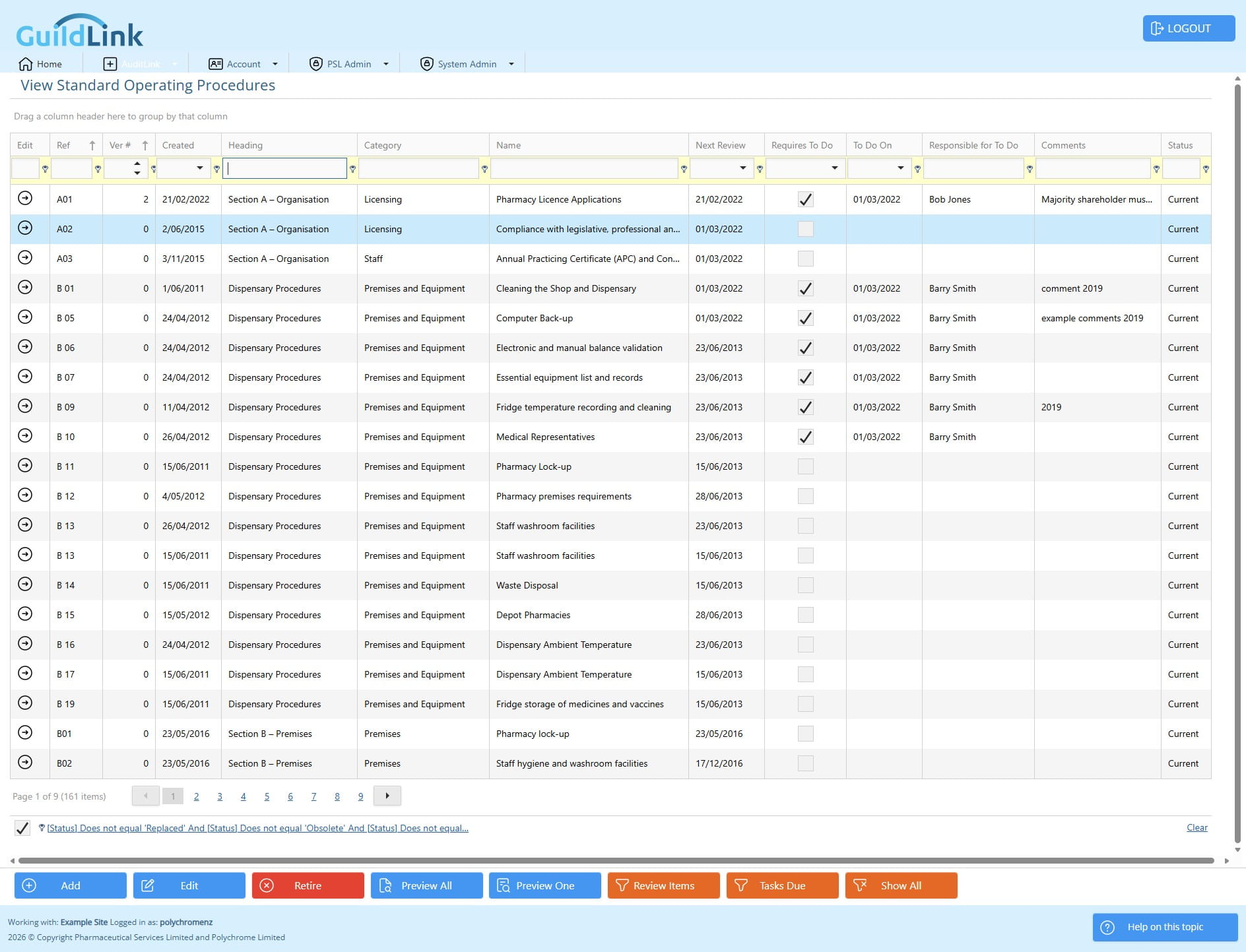
Navigate to AuditLink, SOPs and then choose View Standard Operating Procedures
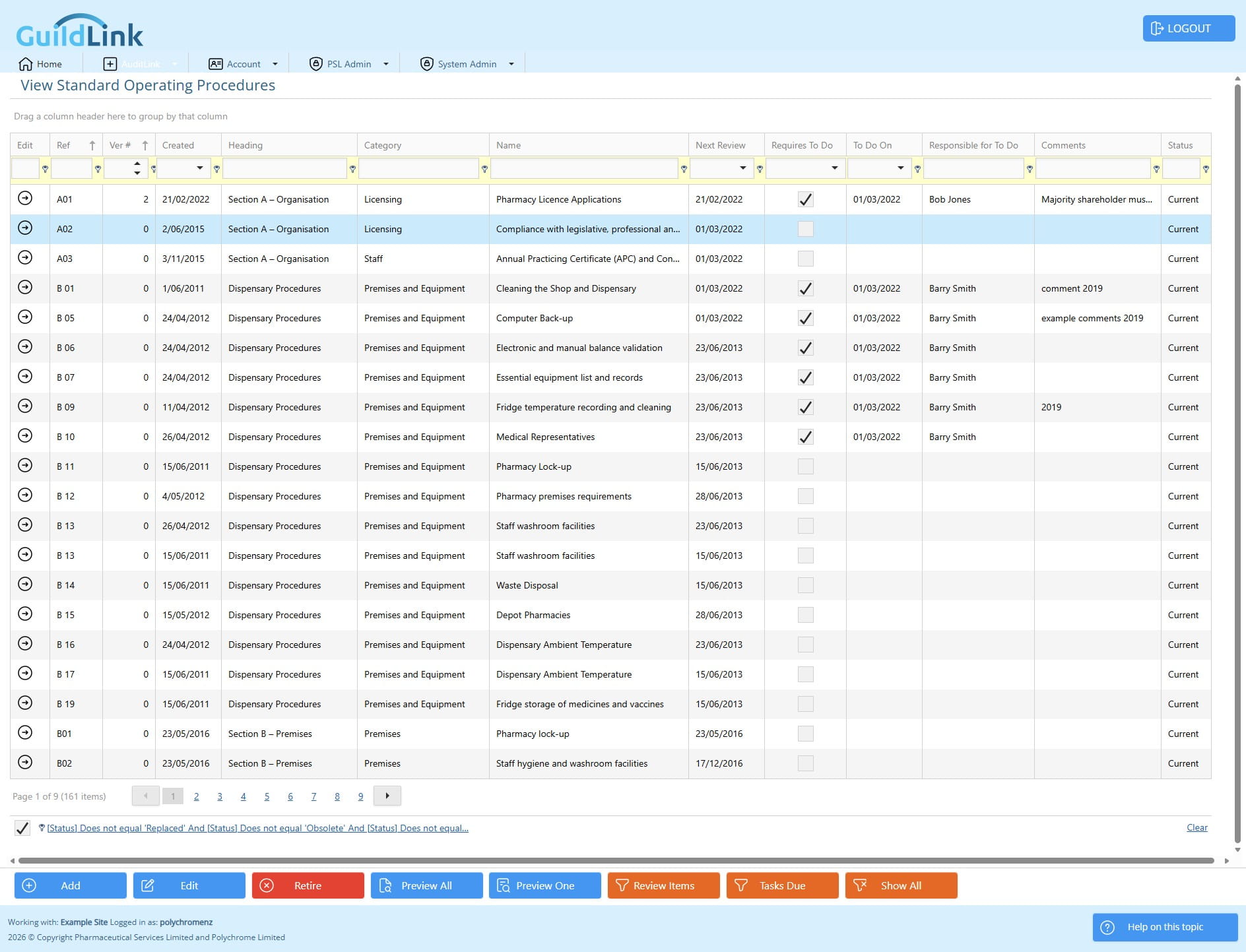
The example shown is for filtering SOPs as that's where we typically have the most data, but the filtering is common to all screens. There are a few extra shortcut filtering buttons (orange buttons) on this screen to cover common filters, but the grouping, sorting and filtering is common
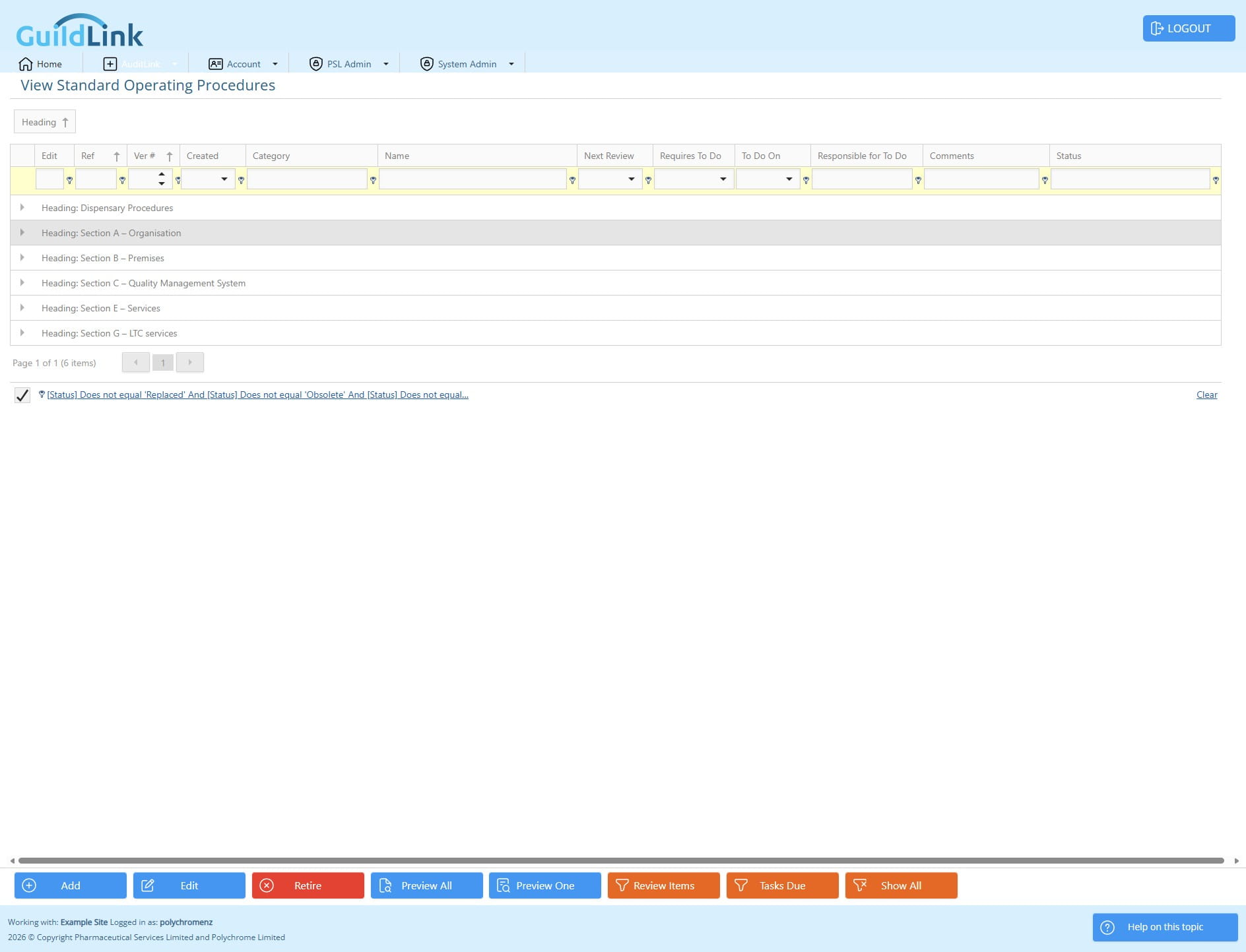
Click on "Heading" and drag to the grouping panel to group by Heading
Click this icon to expand or collapse a section
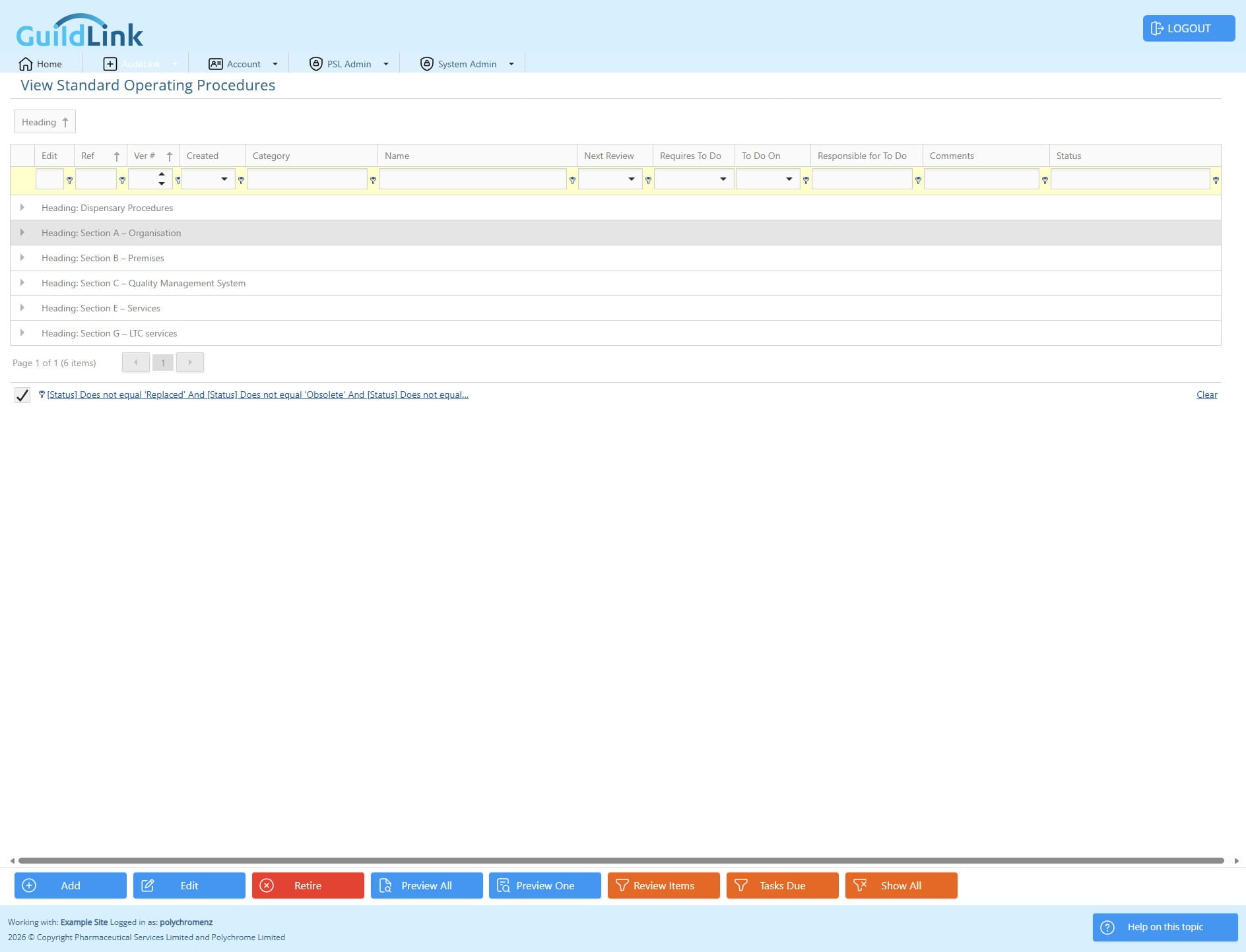
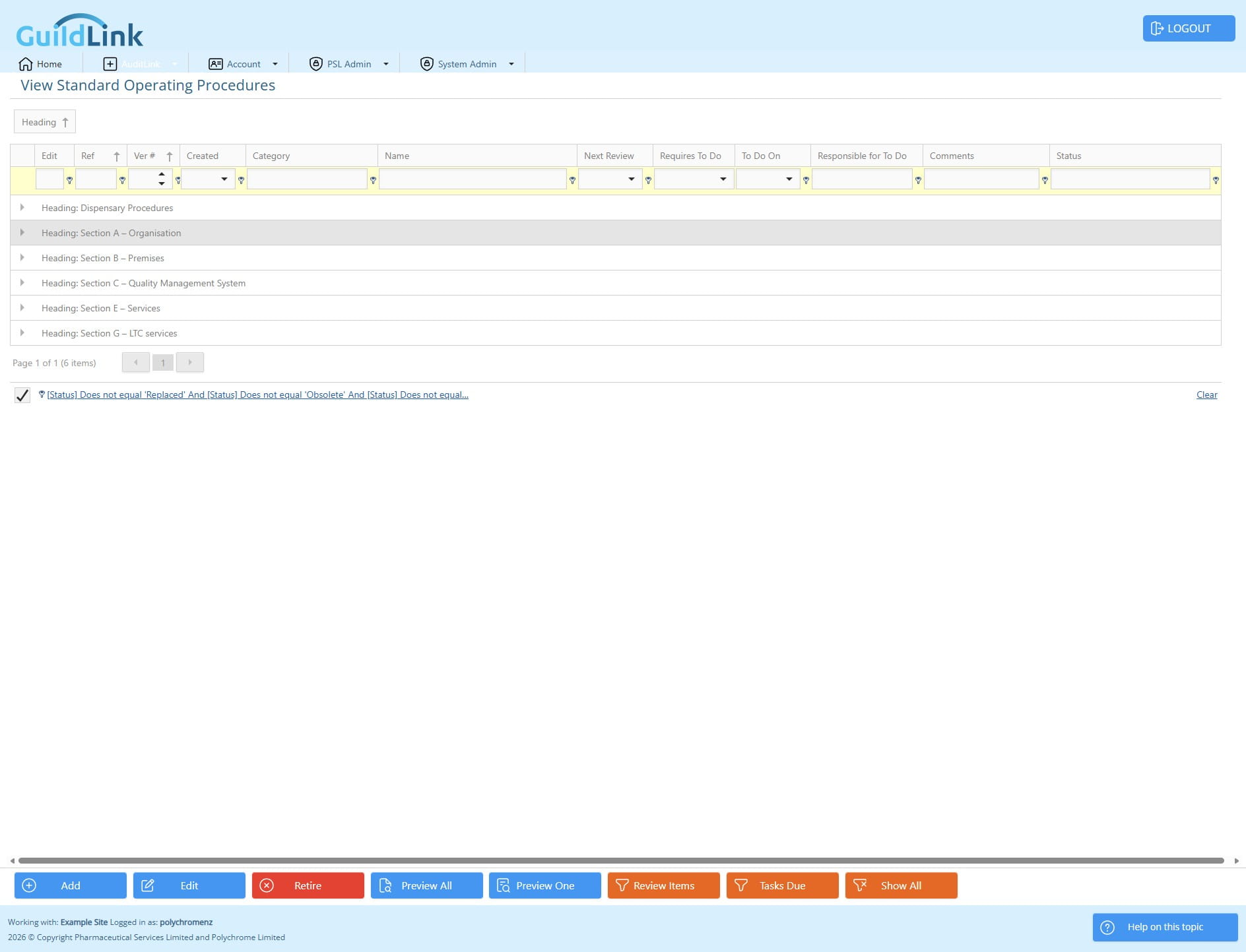
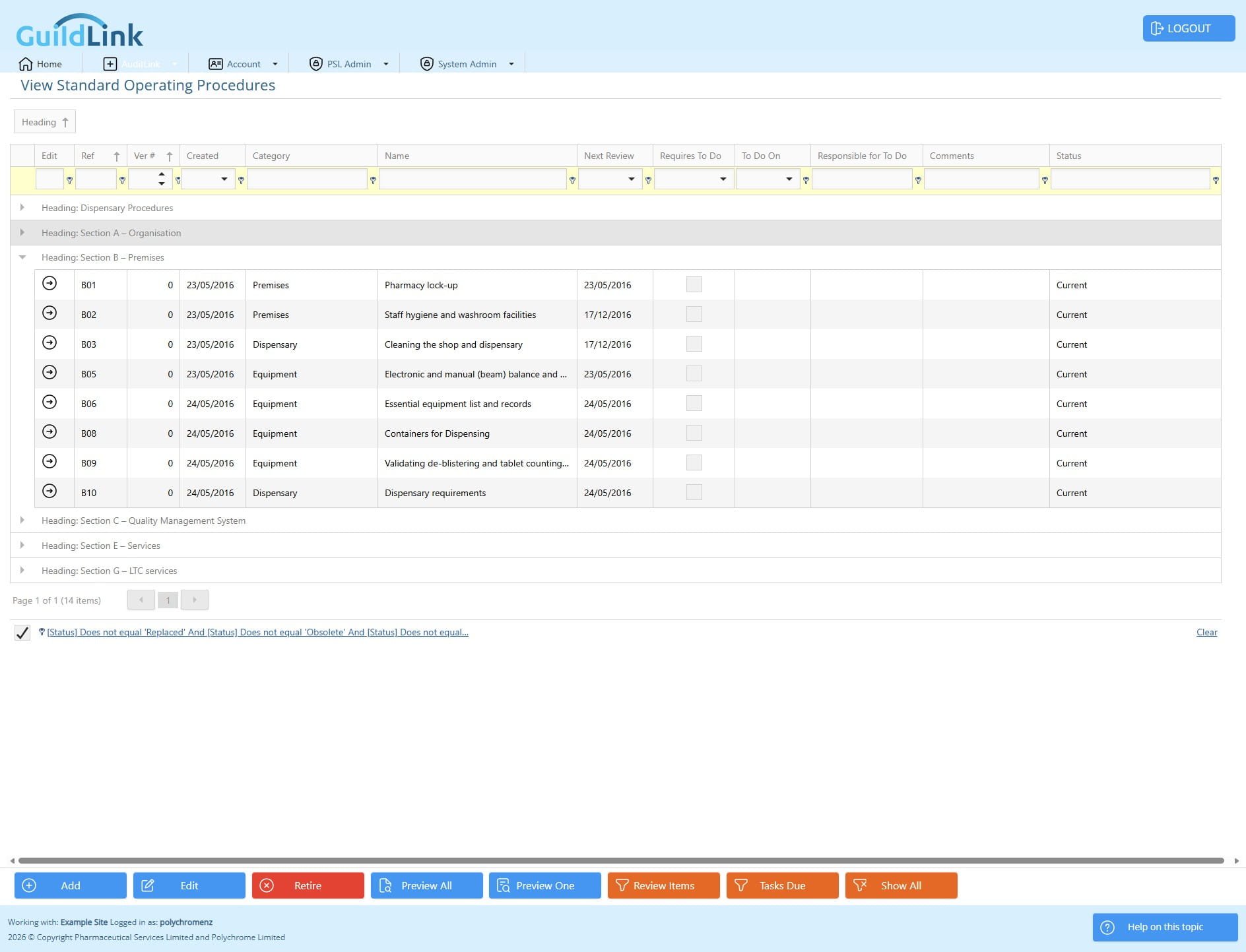
Click on "Heading" and drag back to the grid to remove the grouping. You can place it anywhere that suits you, the layout can be personalised by user so you can have a layout that suits you. Occasionally, we add major changes and need to wipe these settings but not very often.
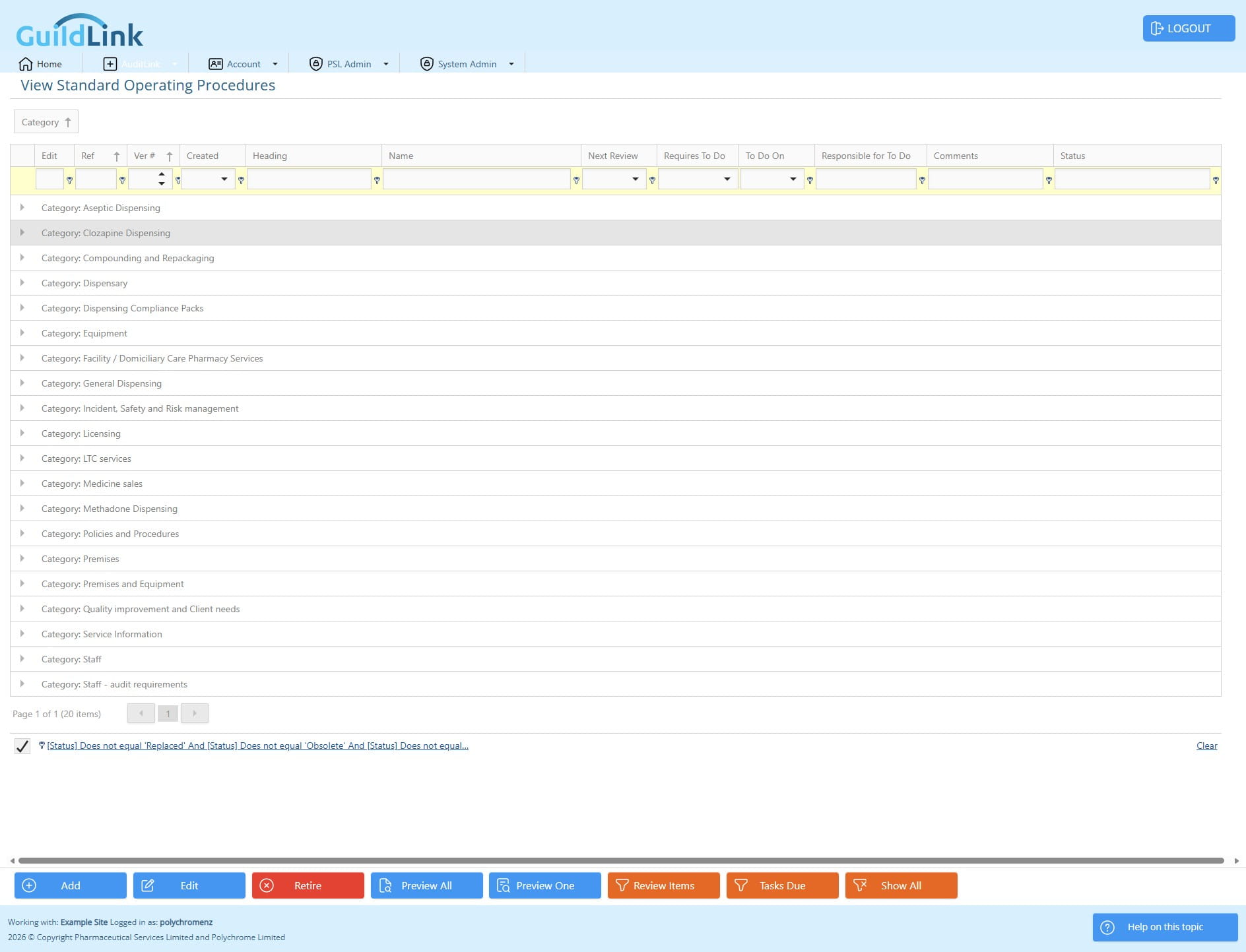
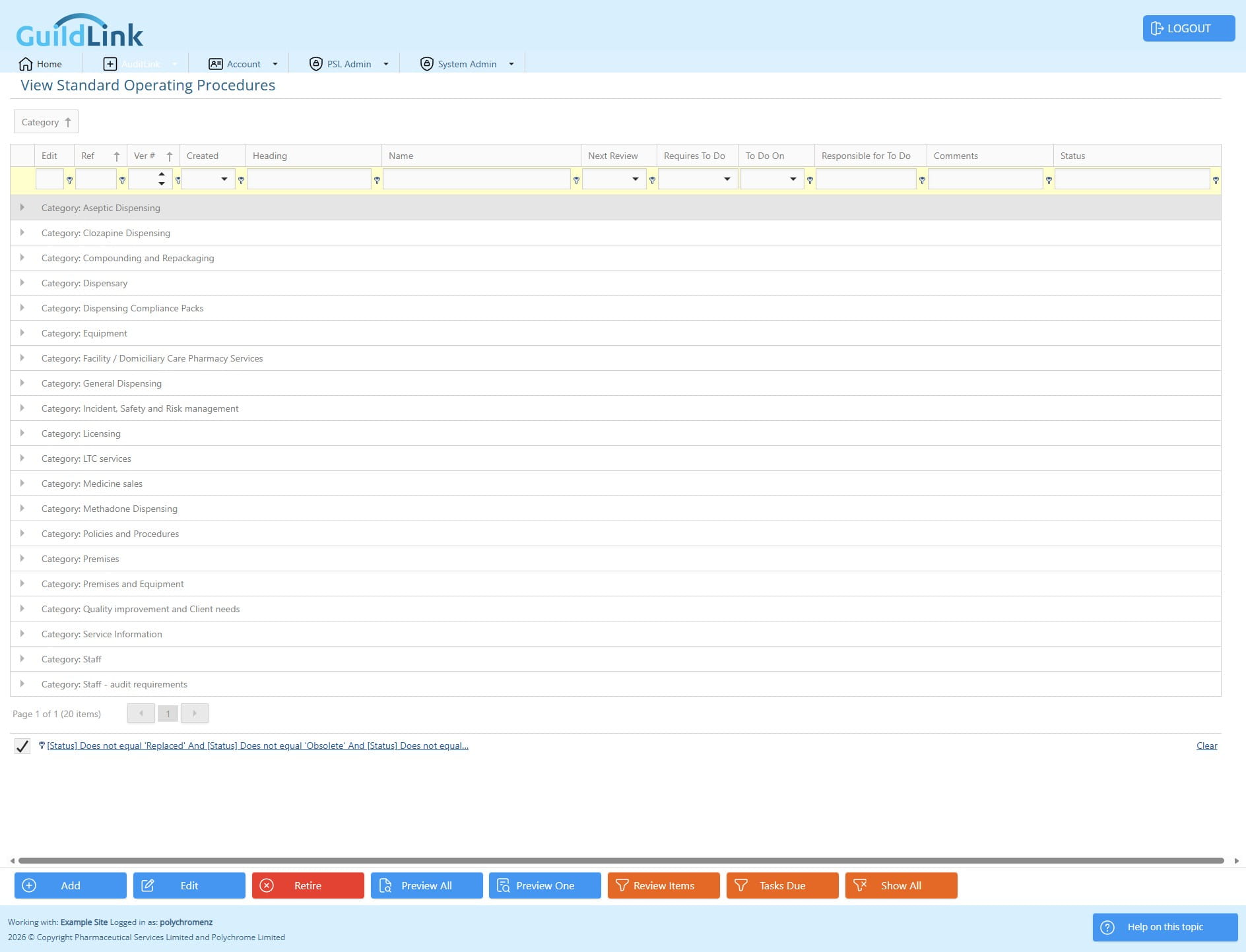
Now let's click on "Category" and group by that. Click and hold, then drag it to the group panel that sits above the grid
Click this icon to expand or collapse this category
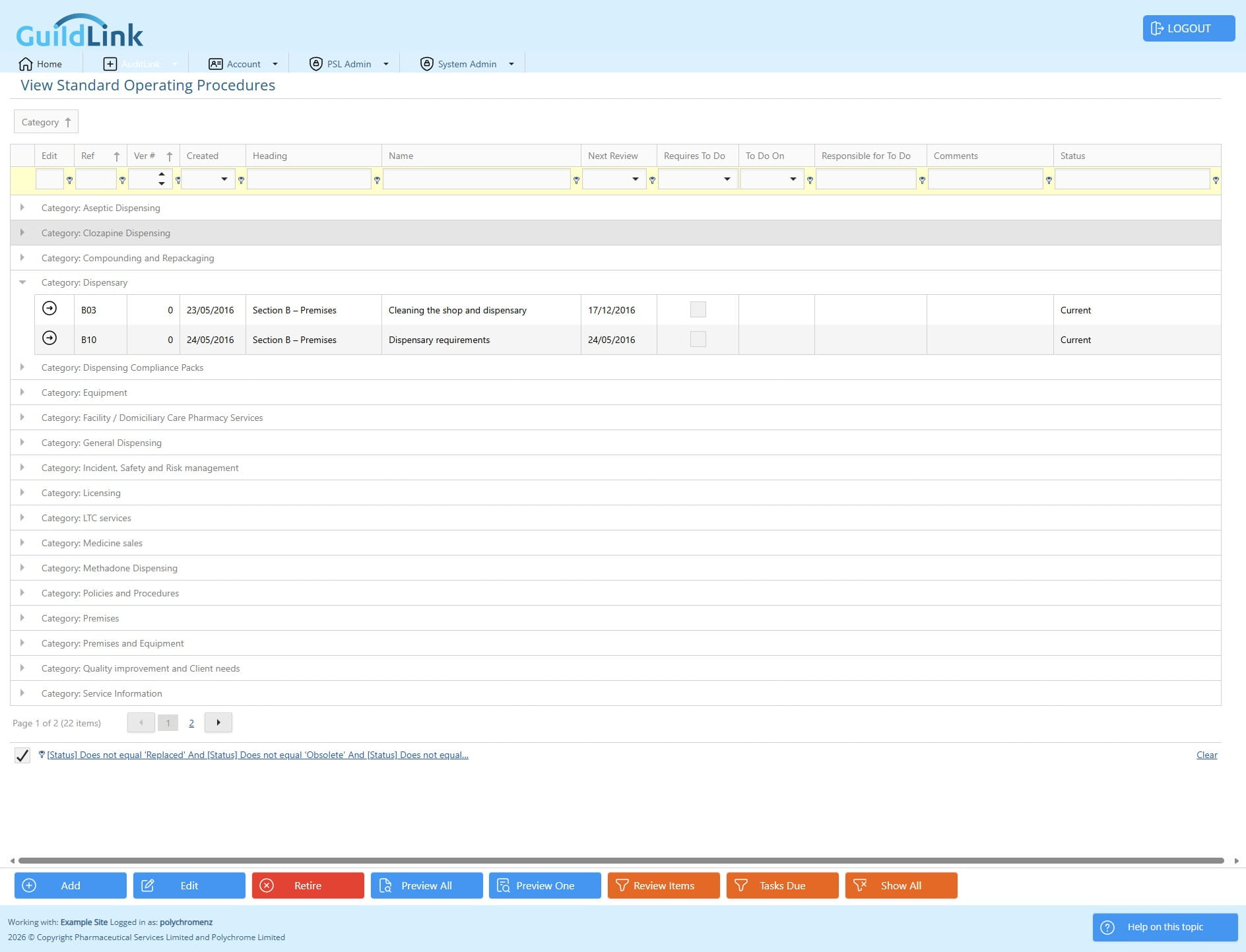
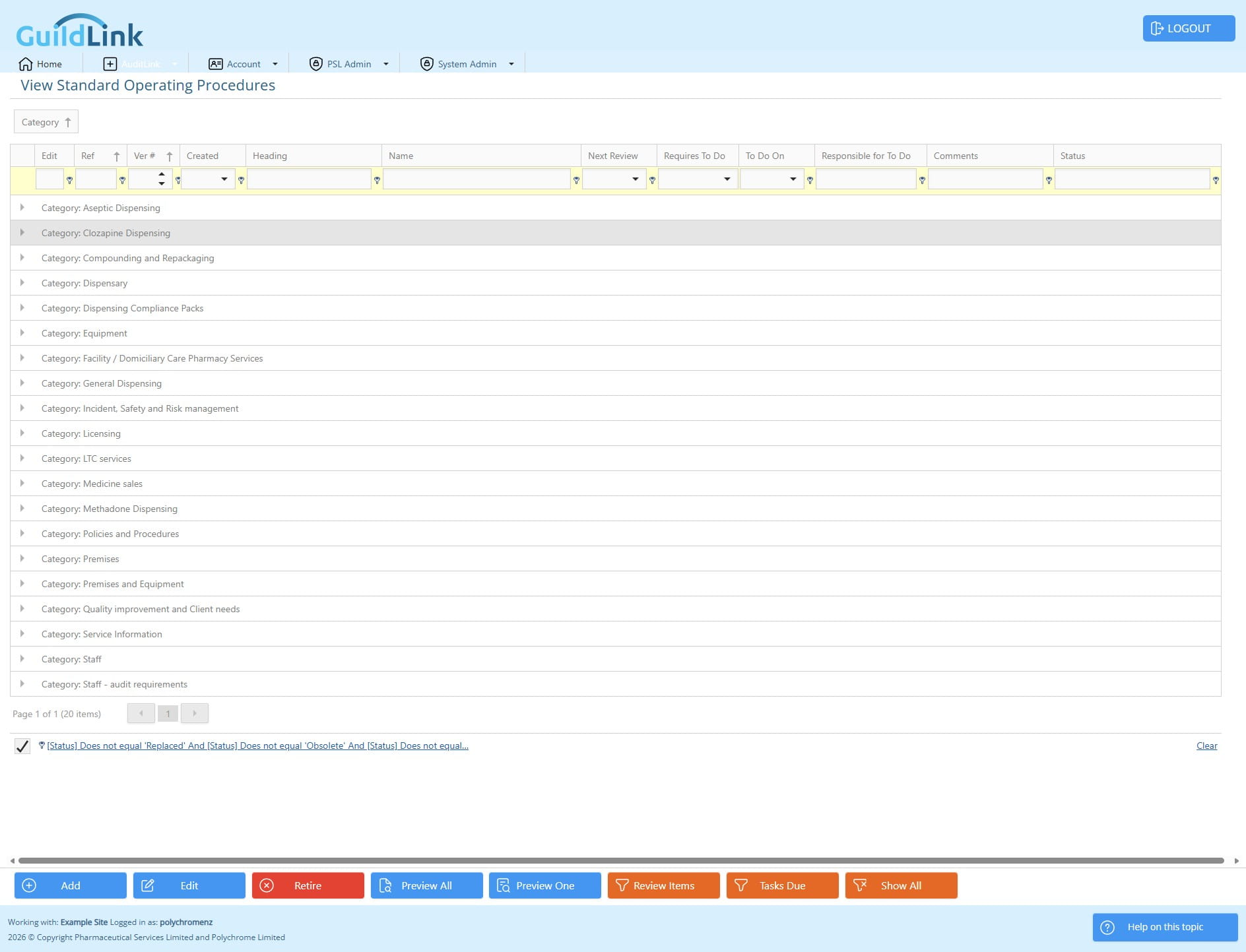
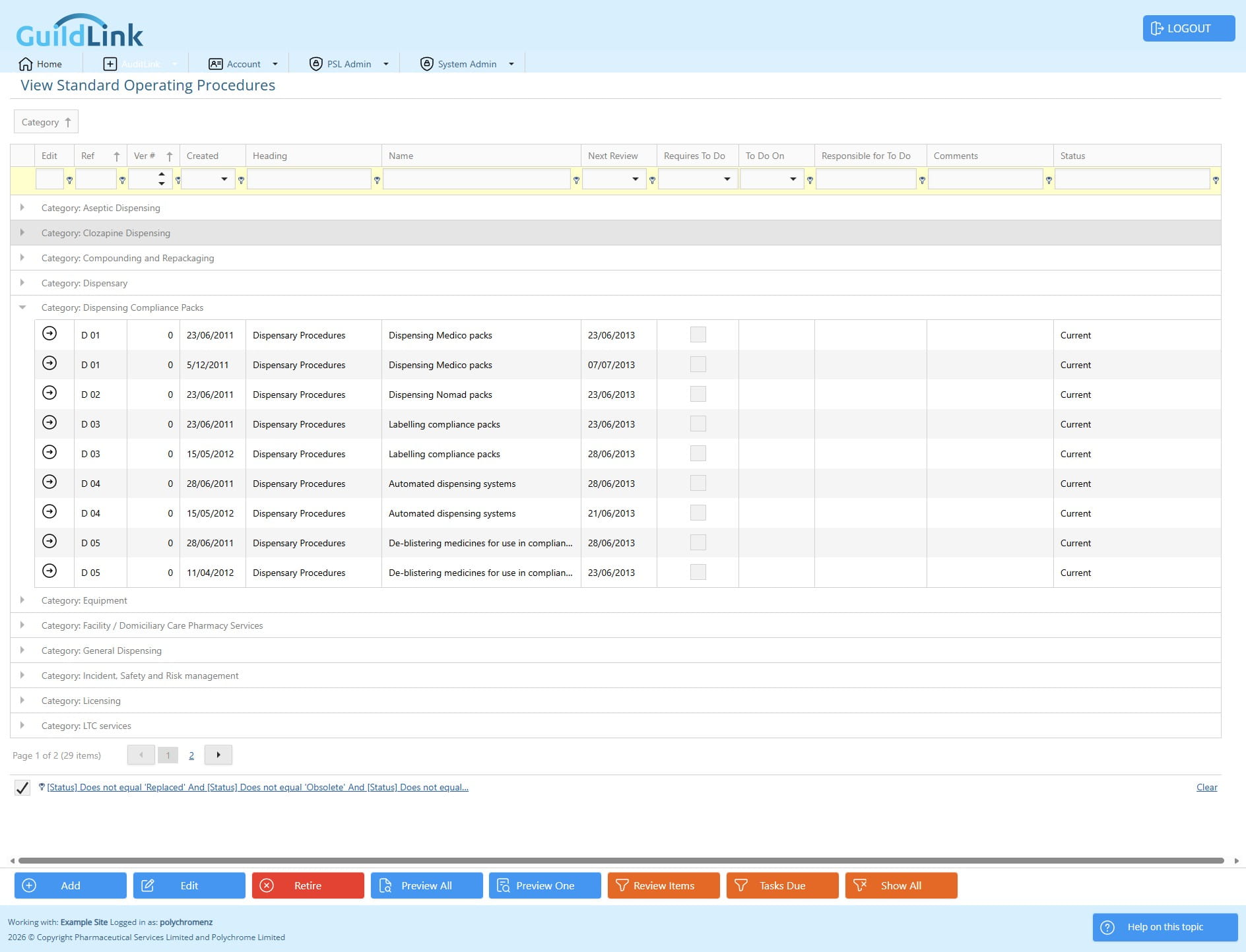
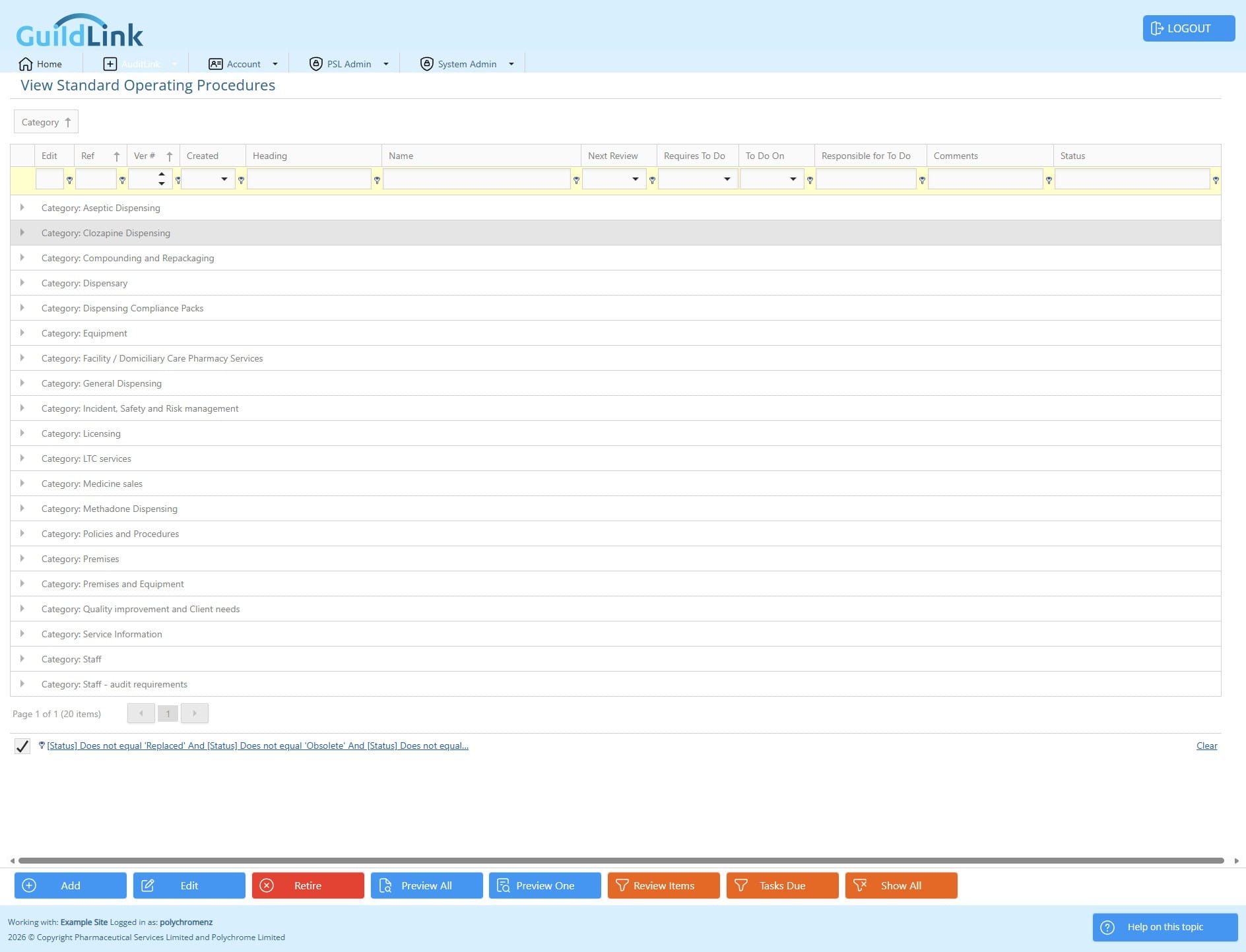
Click this image to go back to the home screen - you can see that your layout is saved
Click on "AuditLink"
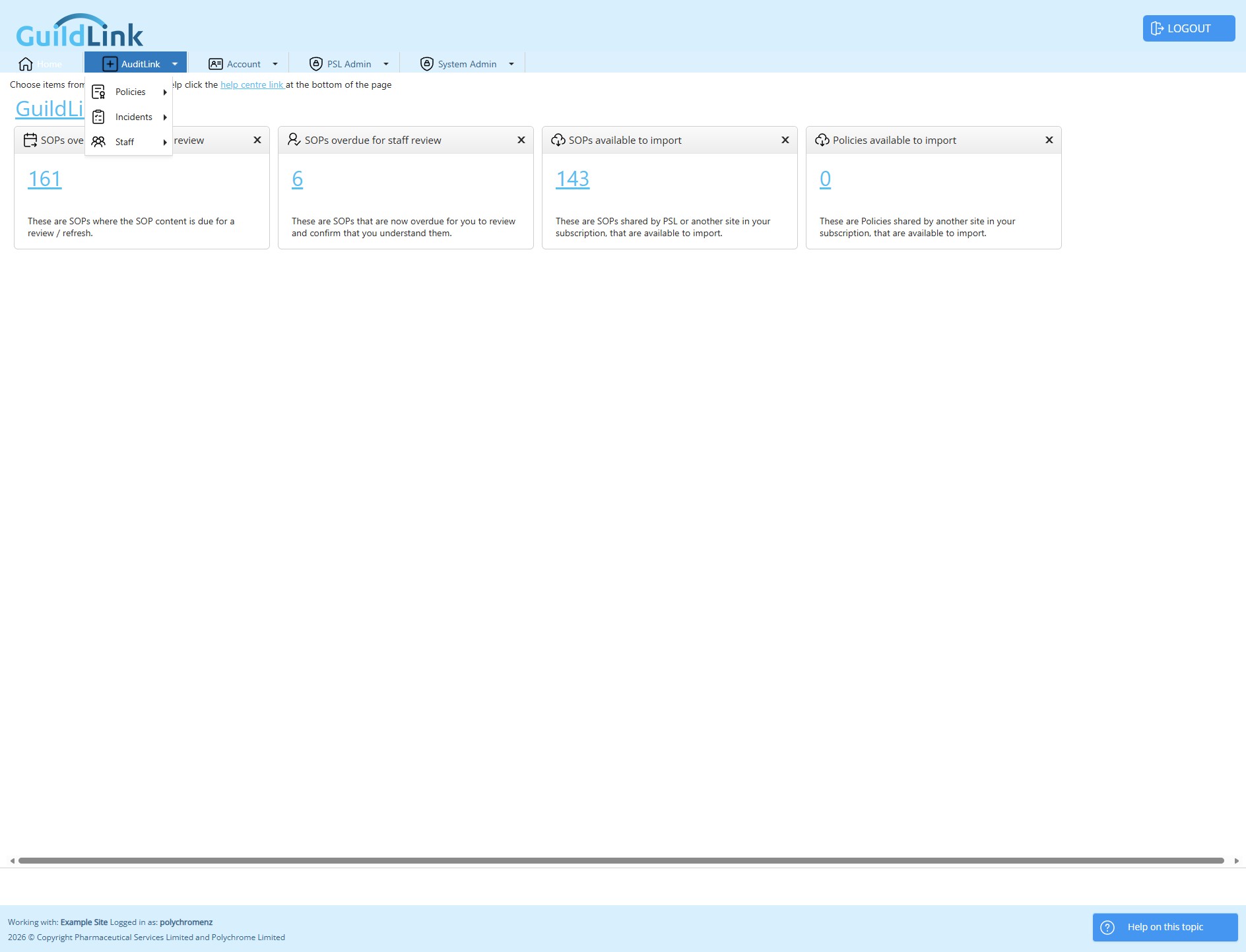
Click on "SOPs"
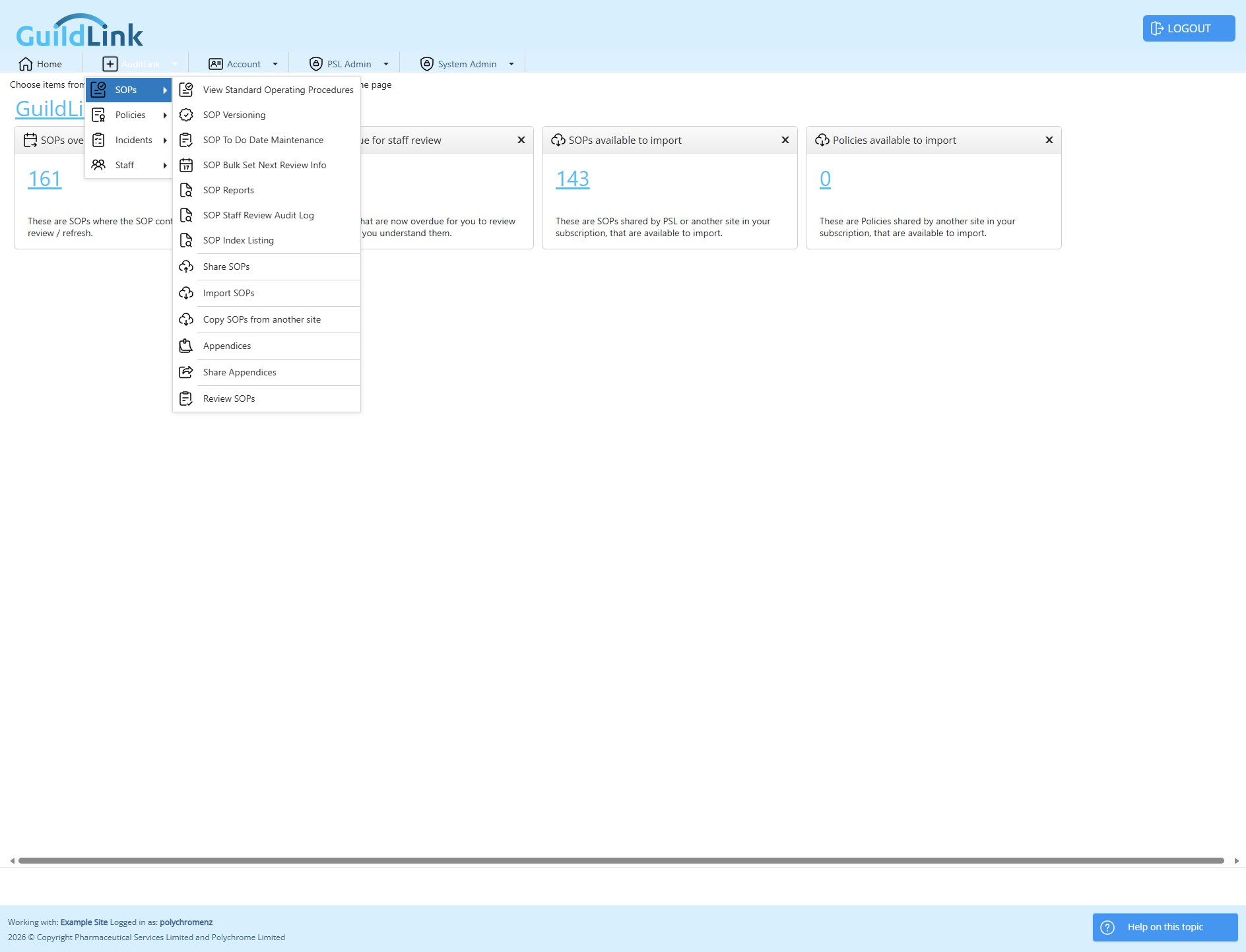
Click on "View Standard Operating Procedures"
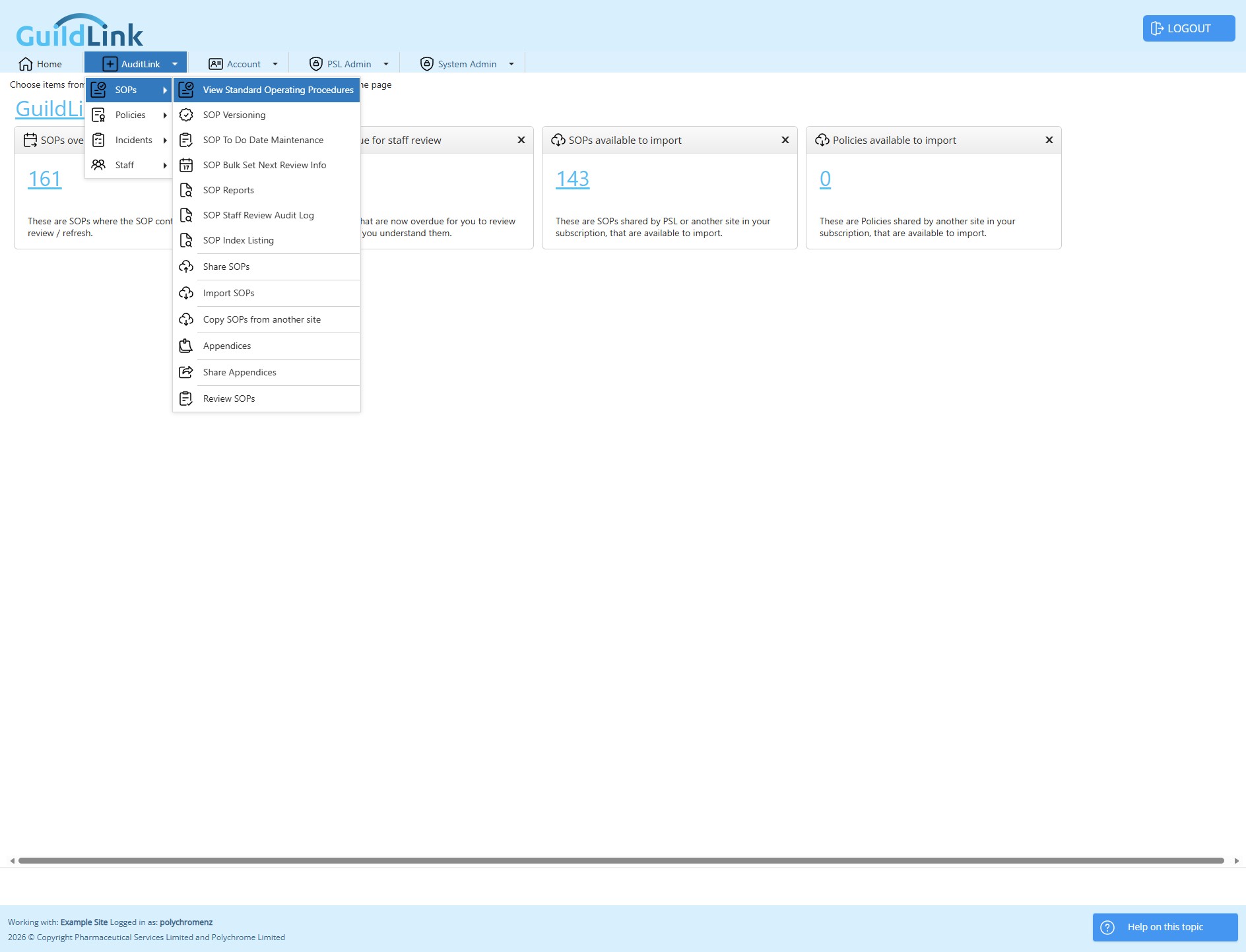
The screen opens and is already grouped by Category - this layout is saved per user
Click on "Name" to sort by name
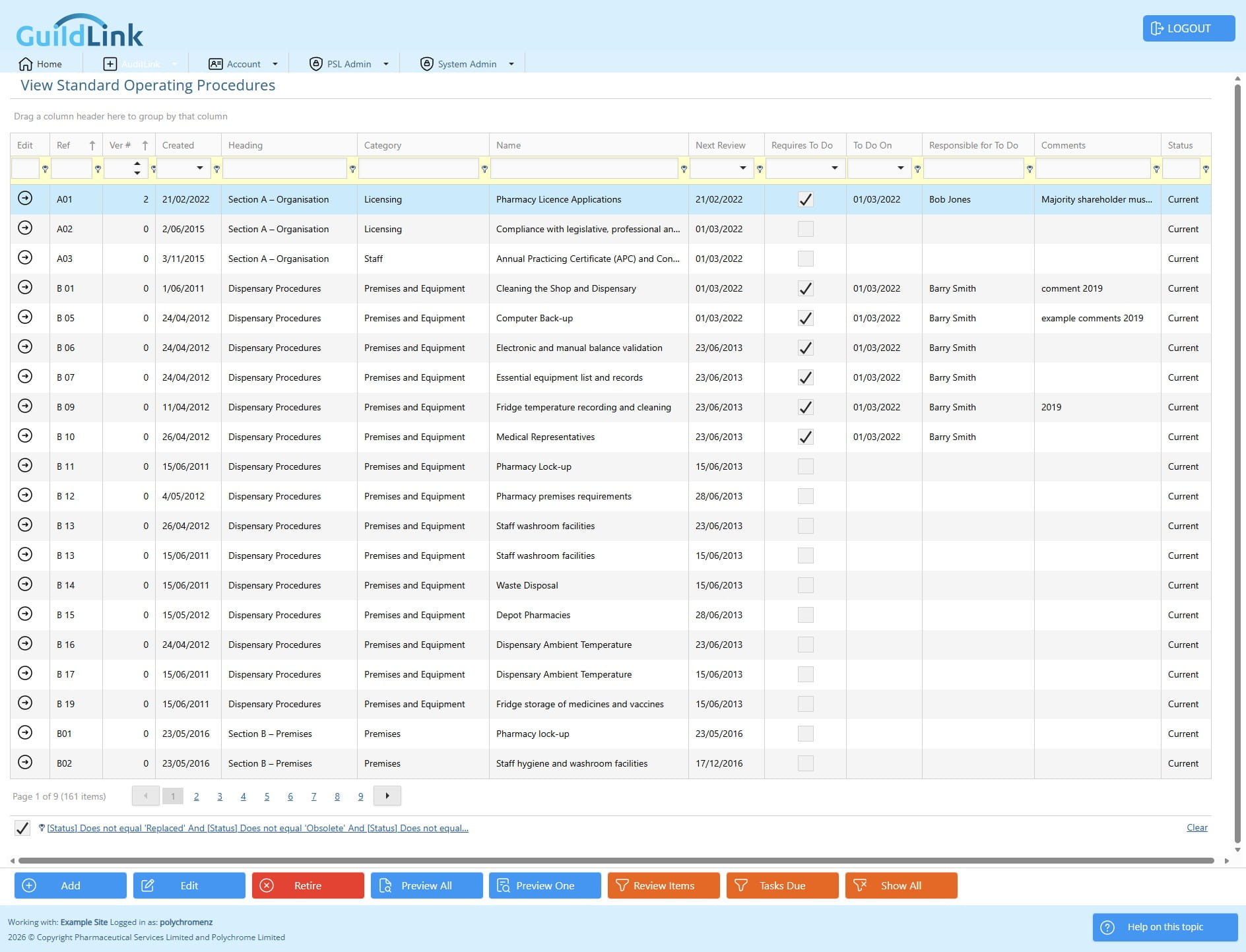
Click on "Heading" to sort by Heading
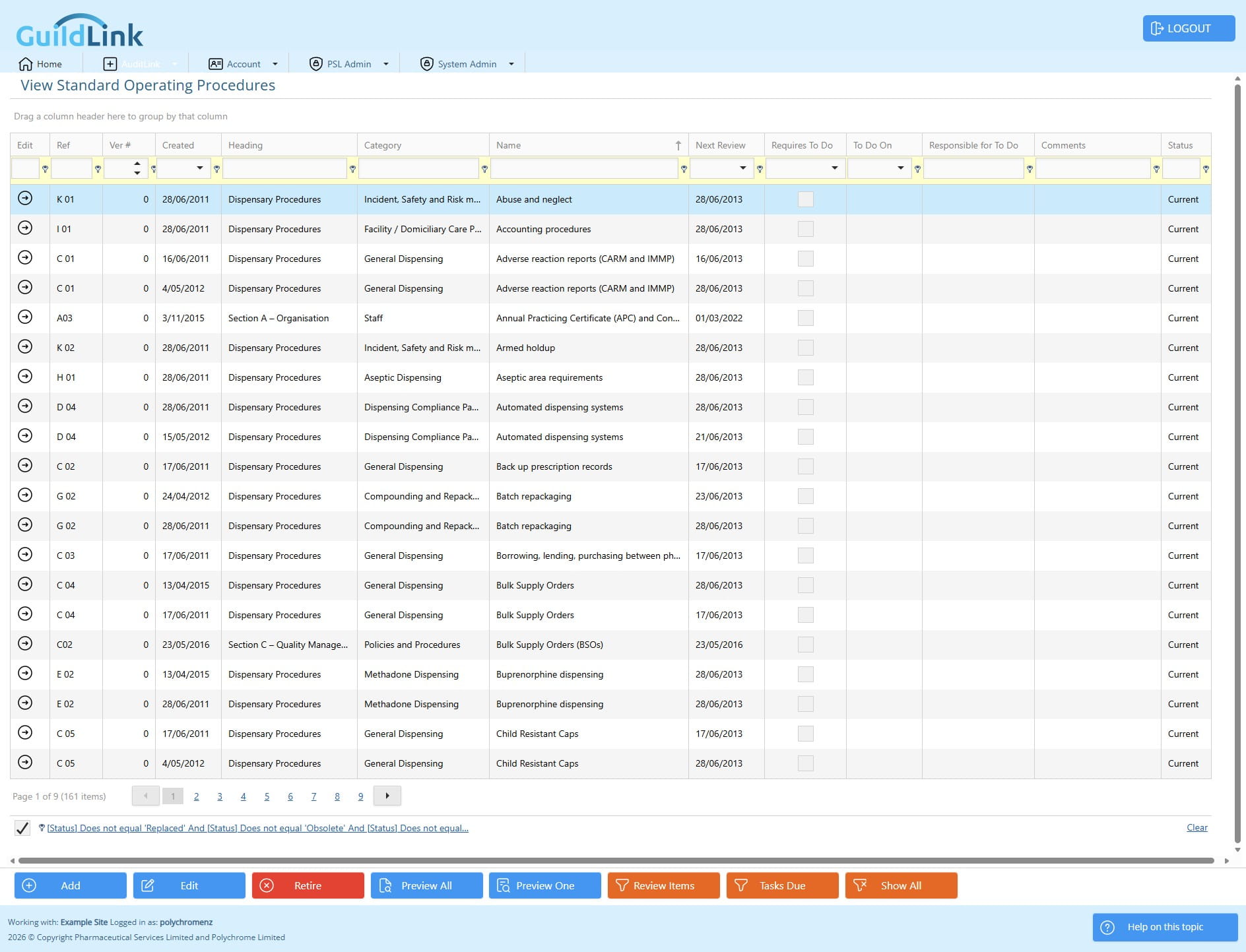
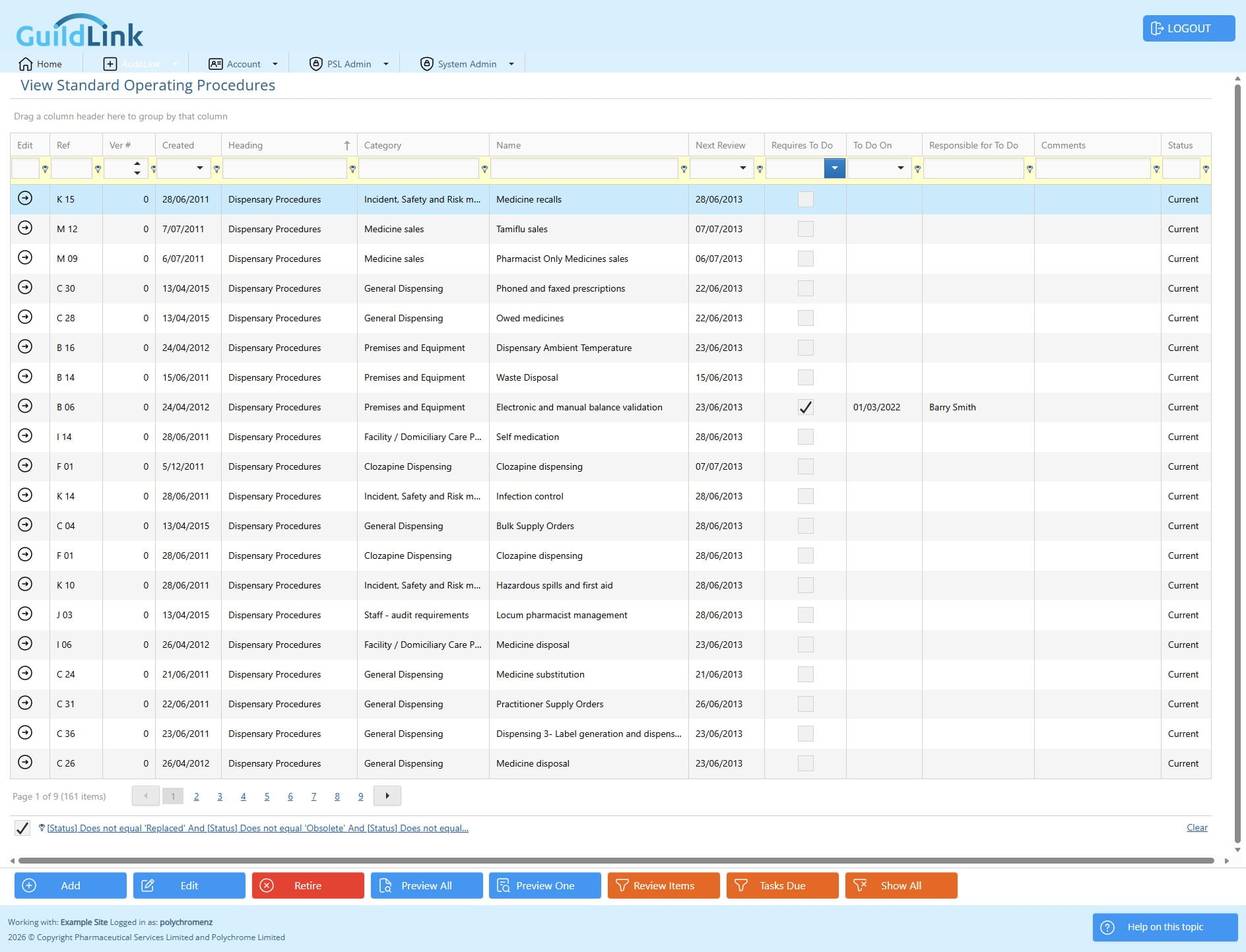
Click this dropdown to filter checked/unchecked
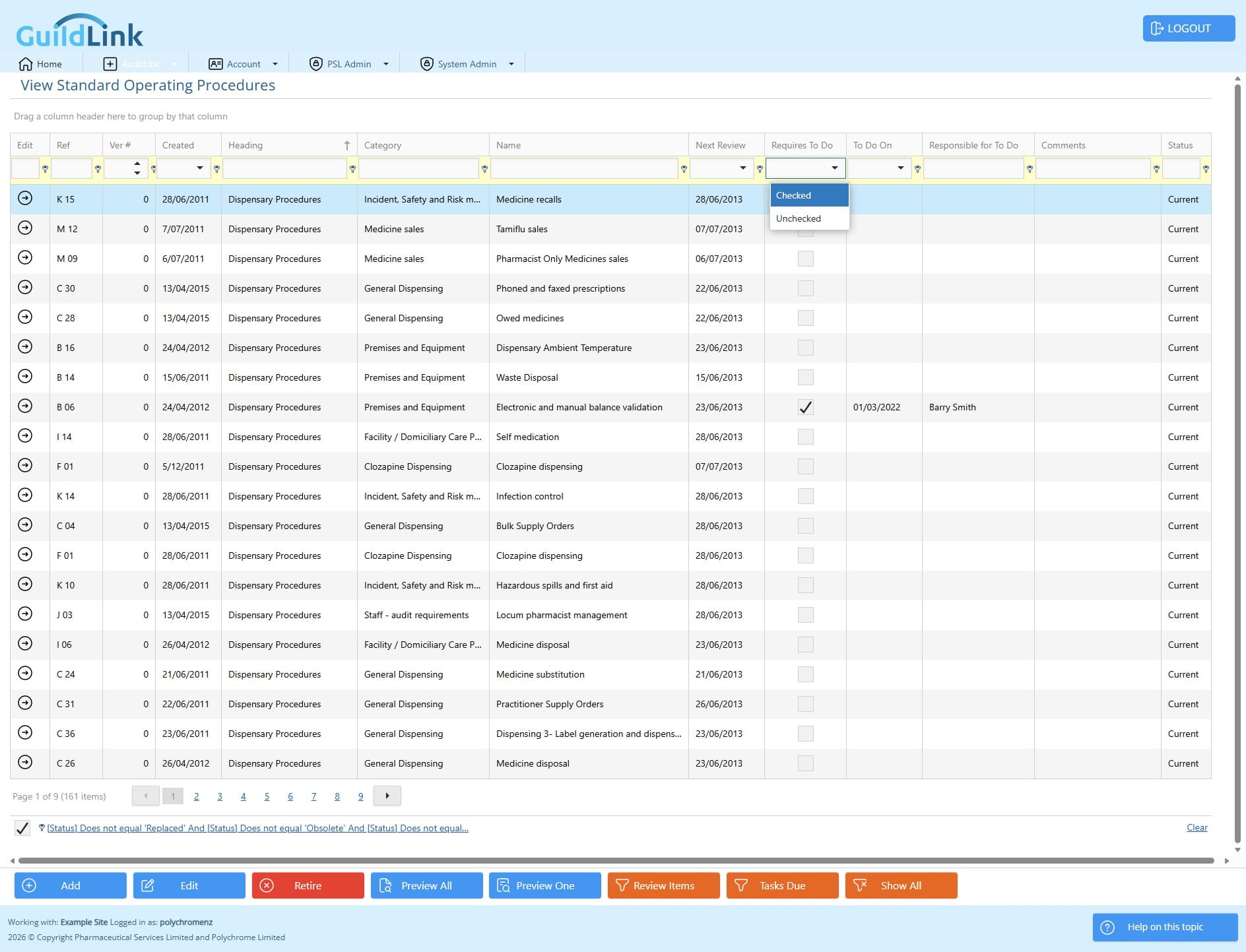
Click on "Checked"
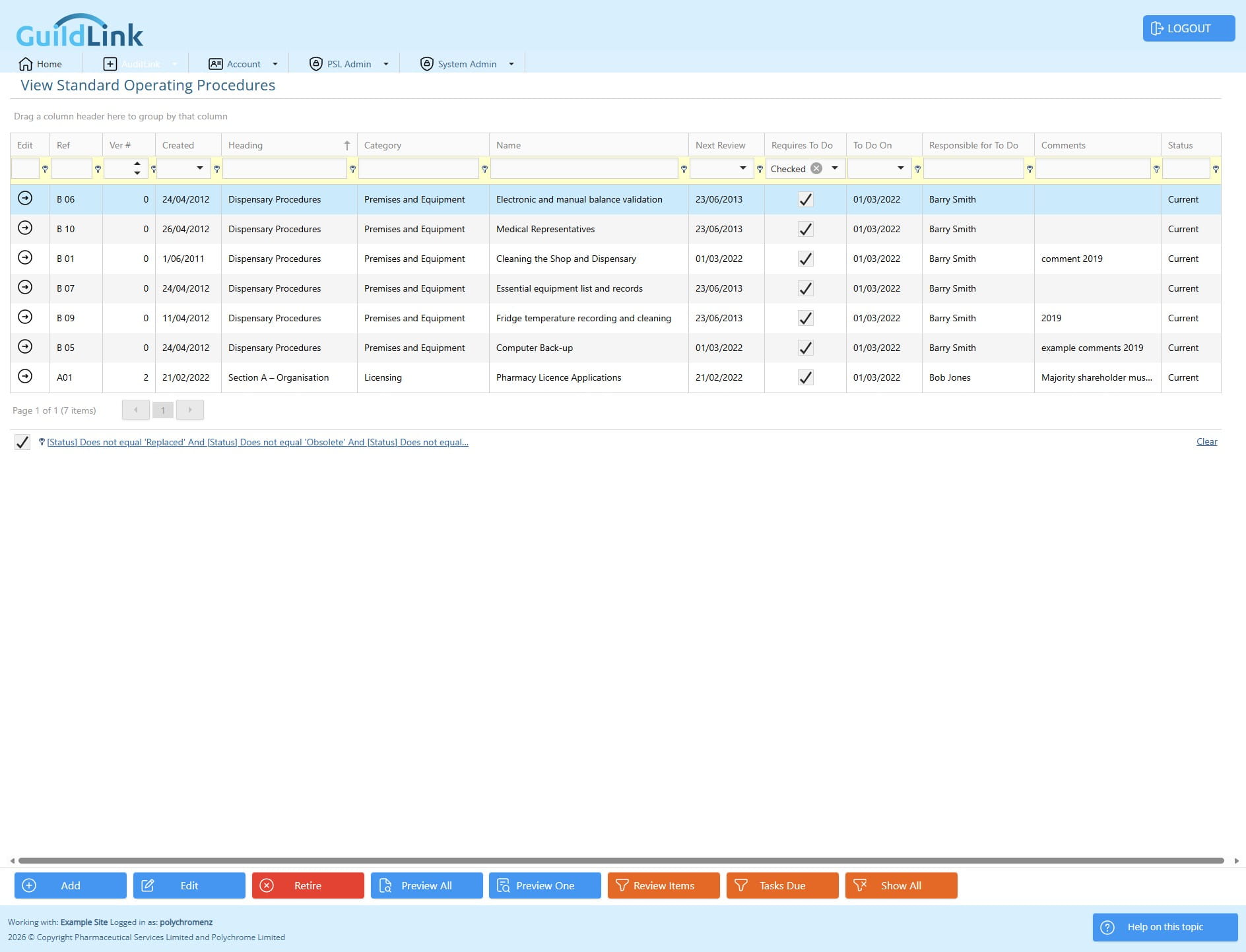
Click this X icon to clear the filter
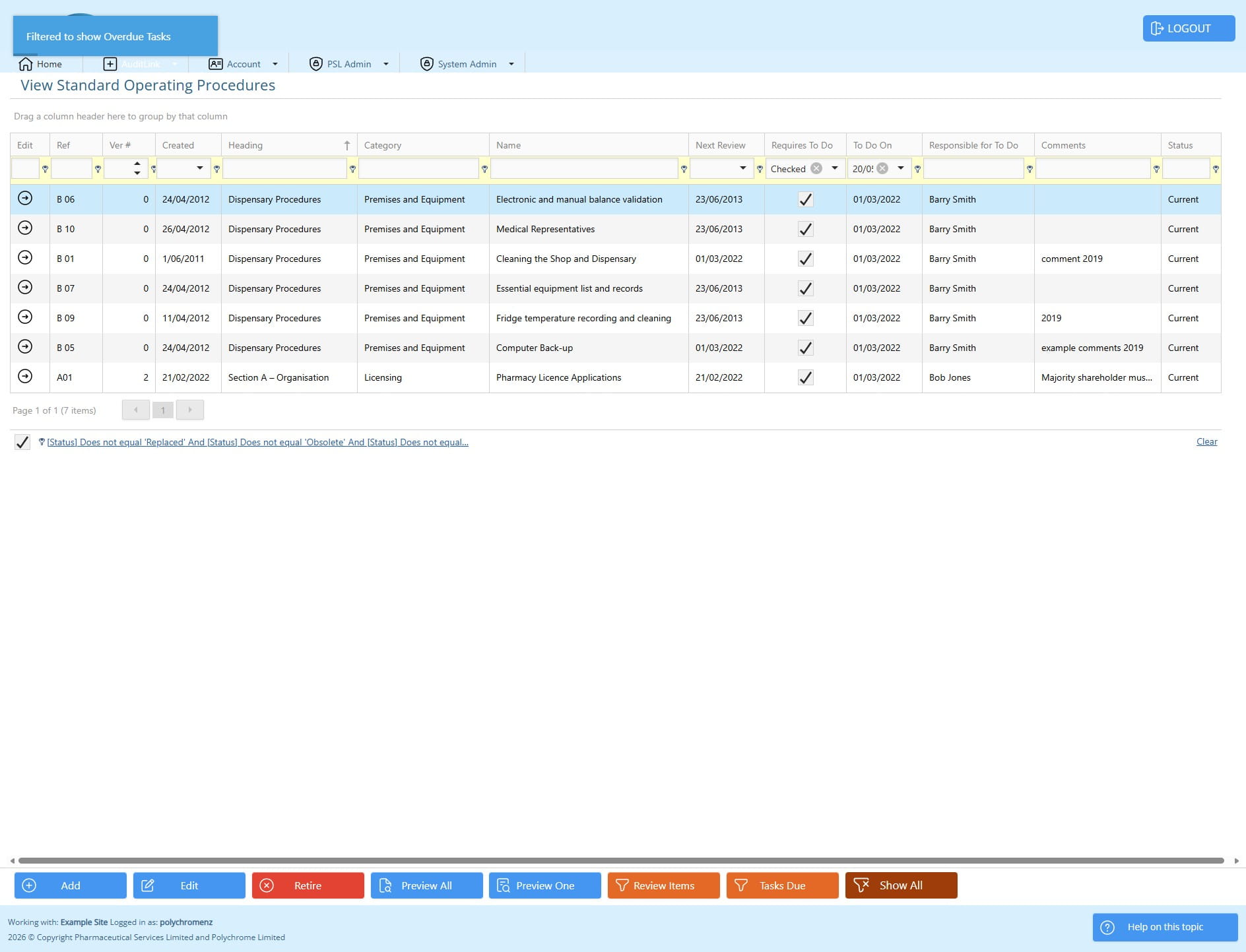
Click on "Tasks Due"
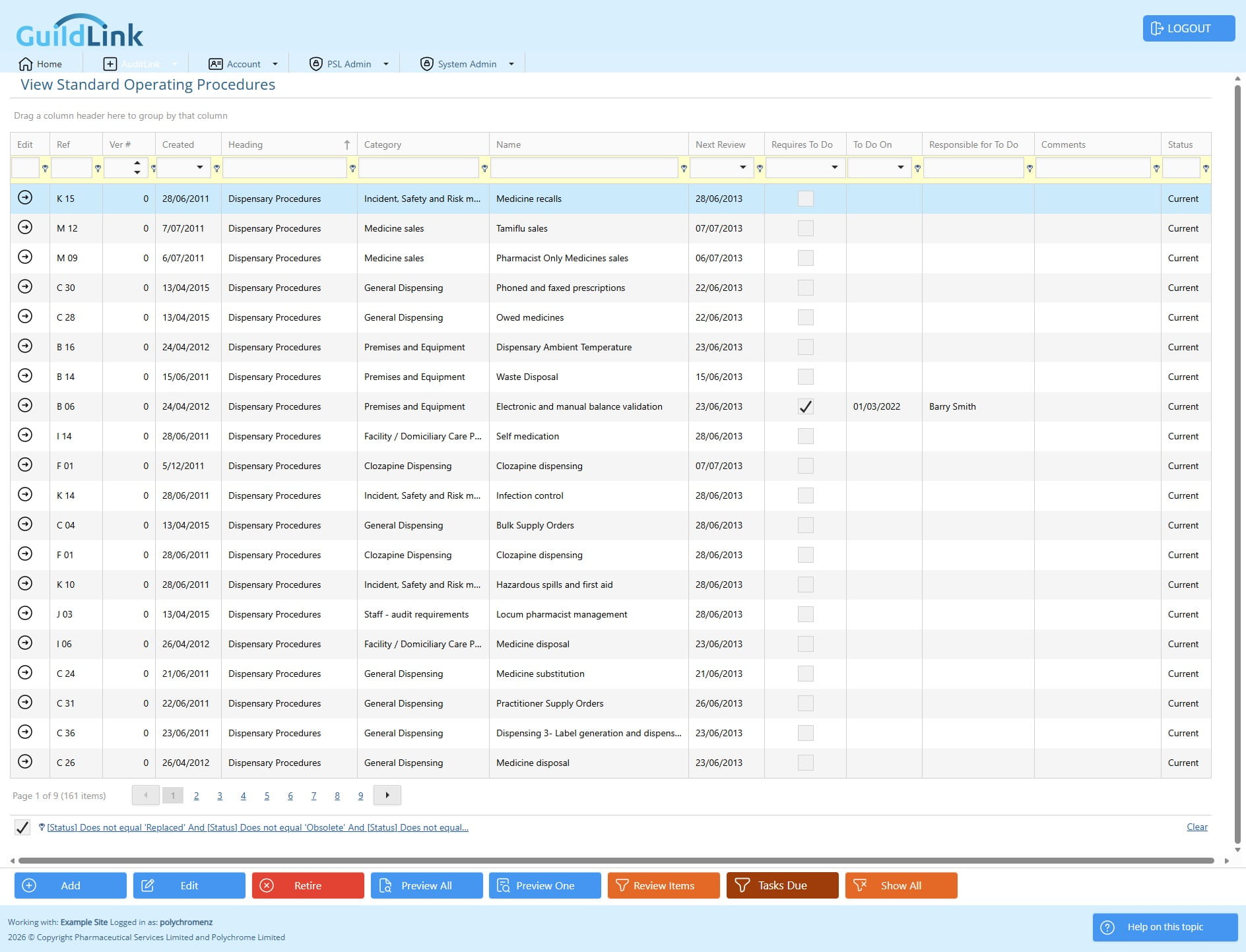
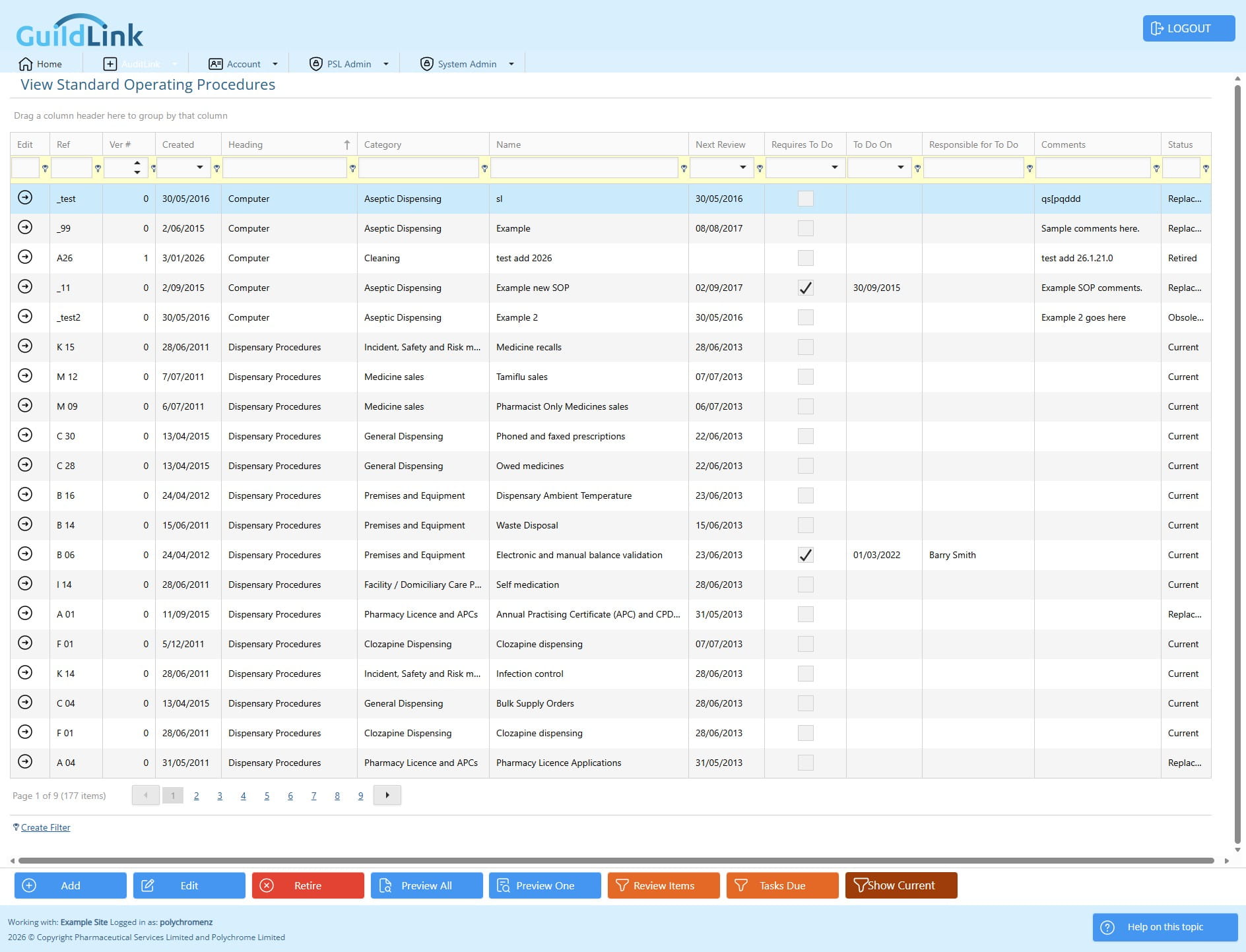
Click on "Show All"
Click on "Show Current"
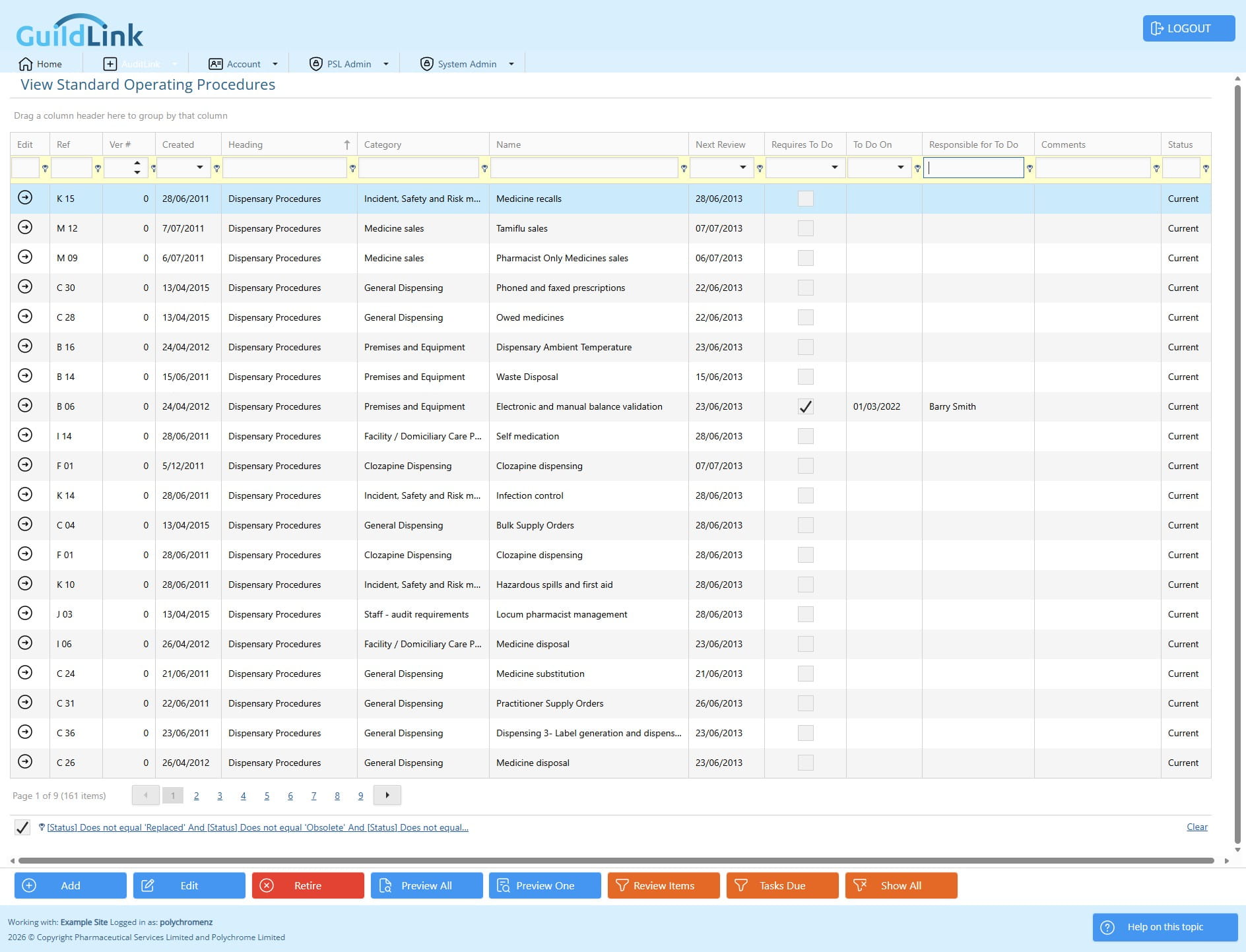
You can filter any column just by typing. You don't need to worry about how the test is formatted as it ignores case and defaults to searching on if the column contains the search text. You can change it to search on starts with etc using the little filter icon but that's a little too advanced for this tutorial.
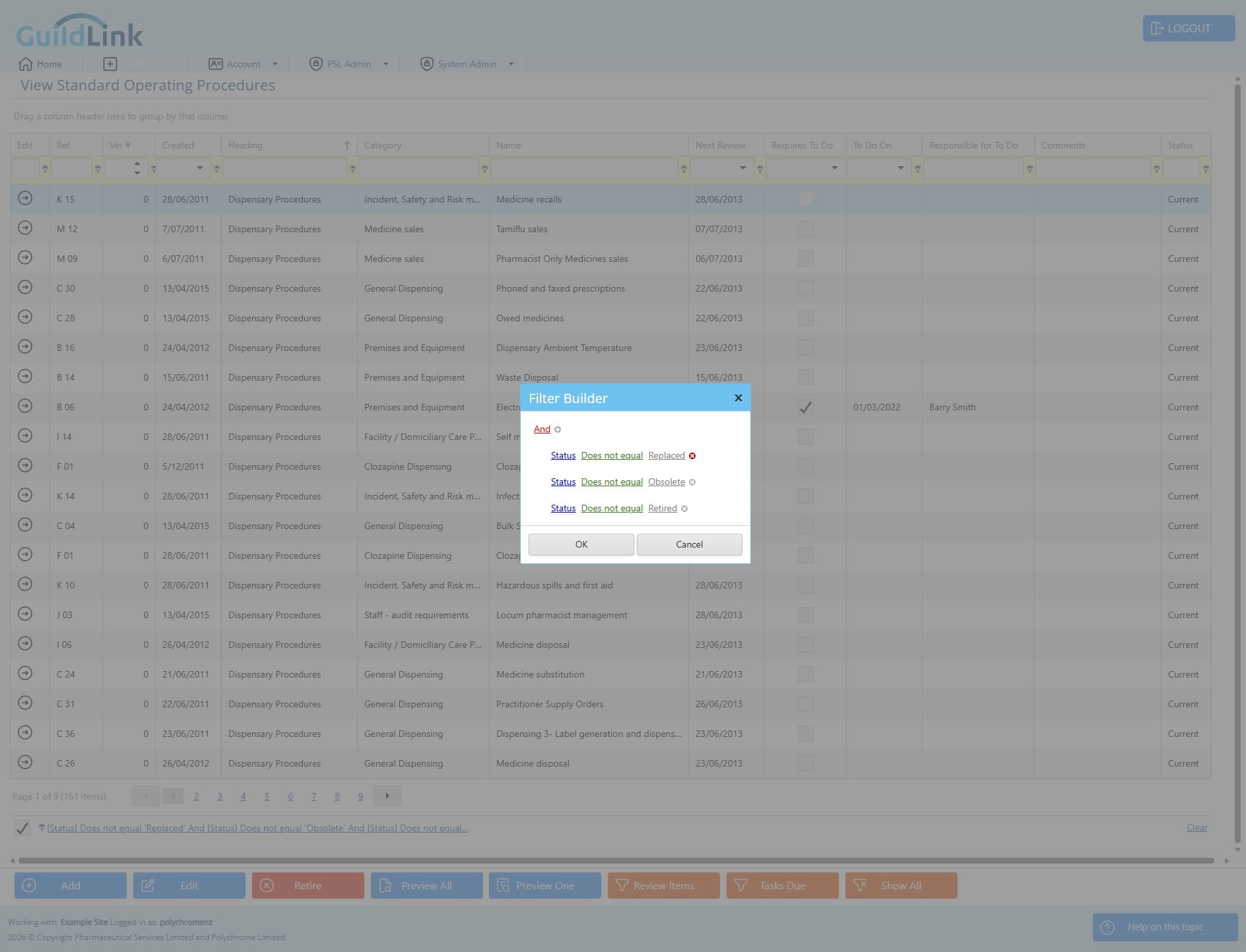
Click on "[Status] Does not equal 'Replaced' And [Status] Do"
![Click on "[Status] Does not equal 'Replaced' And [Status] Do"](https://assets.guidejar.com/uploads/1fb7ae92-462c-4e0a-81c1-f7da7ceb73fb/0jfu2lyJ9HhzZK29ACNwP2yGh5R2/da140af6-c625-4871-b6ac-18f26cc0de52/1779315200951.jpeg)
You can remove conditions or add more
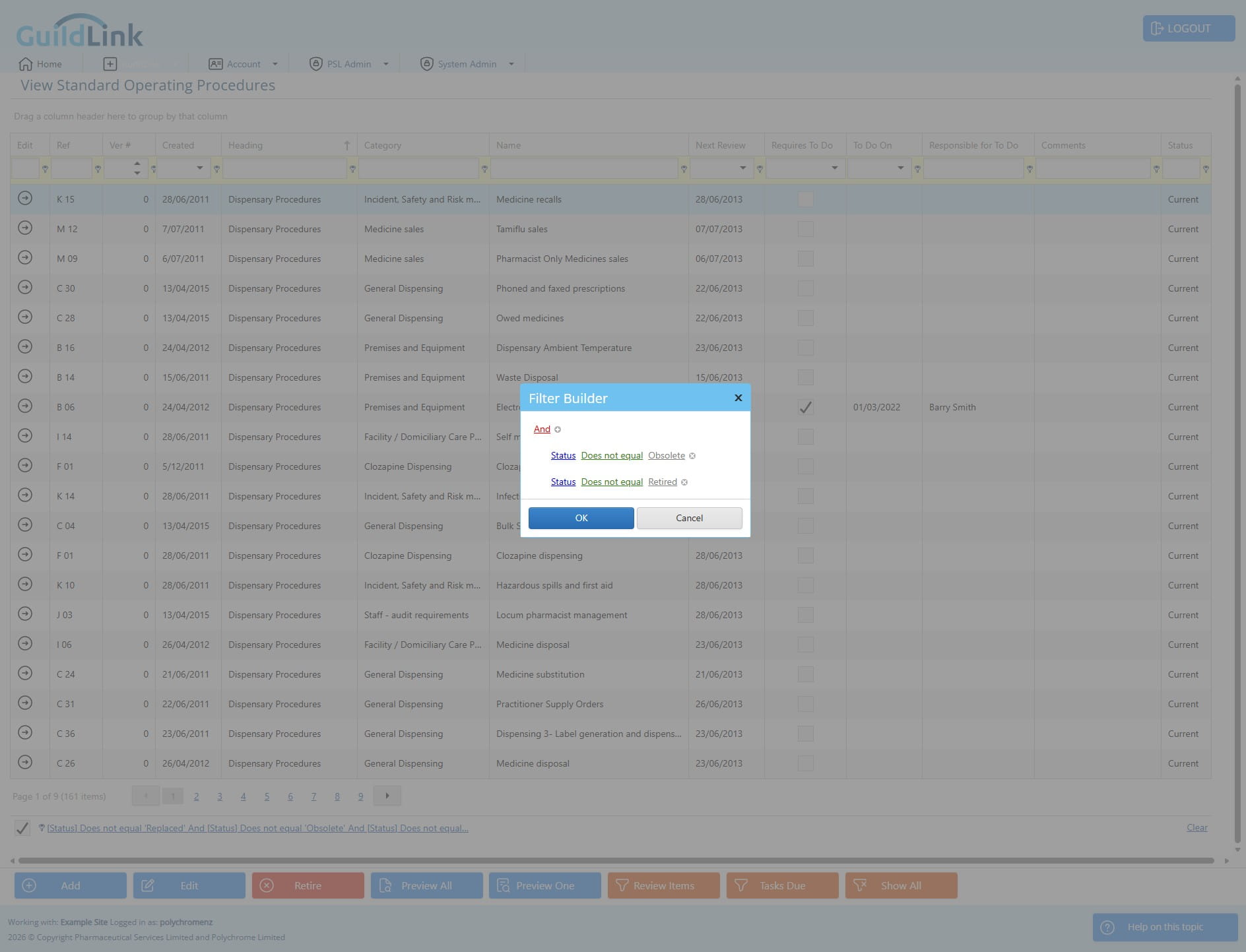
Click on "[Status] Does not equal 'Obsolete' And [Status] Do"
![Click on "[Status] Does not equal 'Obsolete' And [Status] Do"](https://assets.guidejar.com/uploads/1fb7ae92-462c-4e0a-81c1-f7da7ceb73fb/0jfu2lyJ9HhzZK29ACNwP2yGh5R2/bce1a31c-4673-4ab4-a872-b1830cb3e297/1779315212180.jpeg)
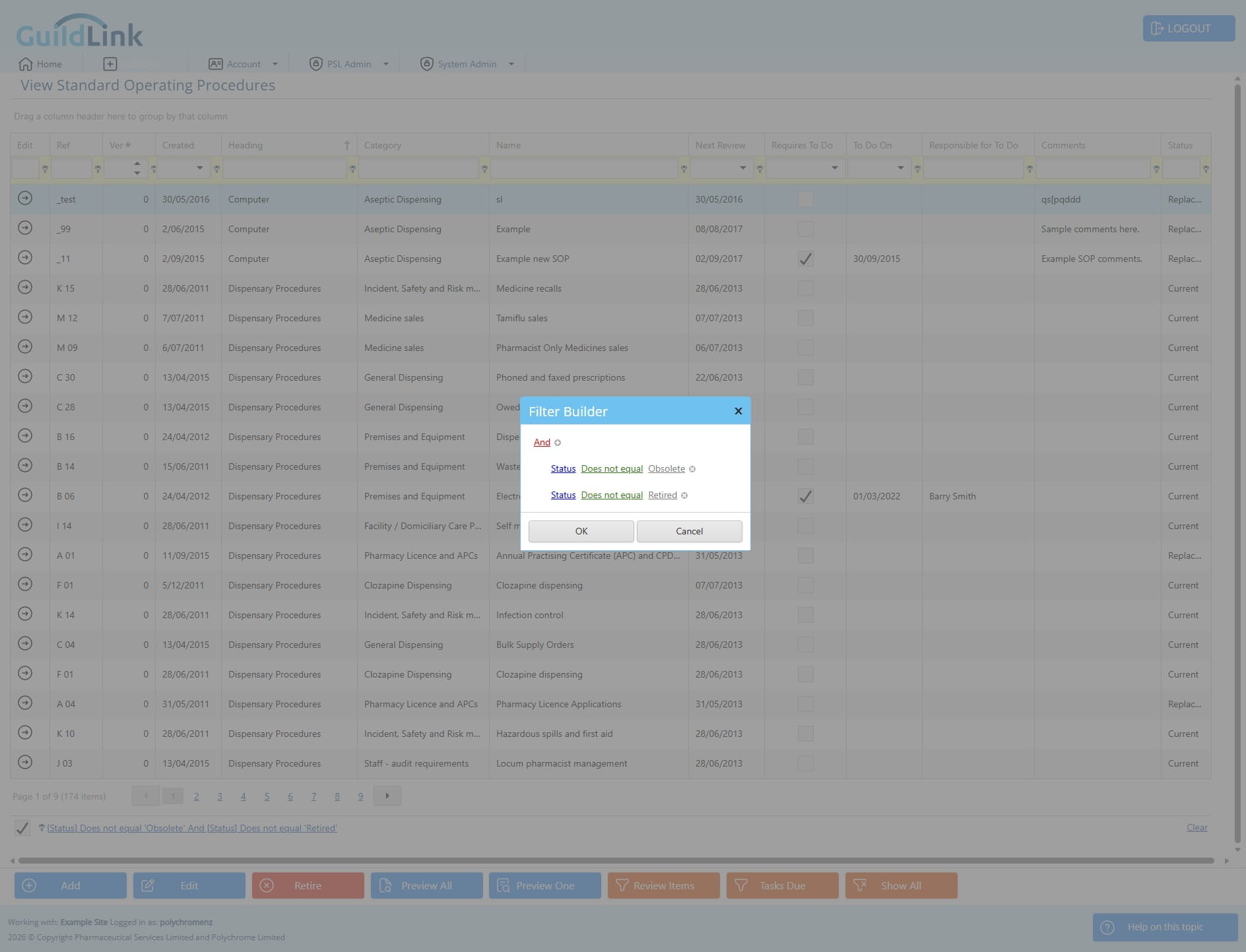
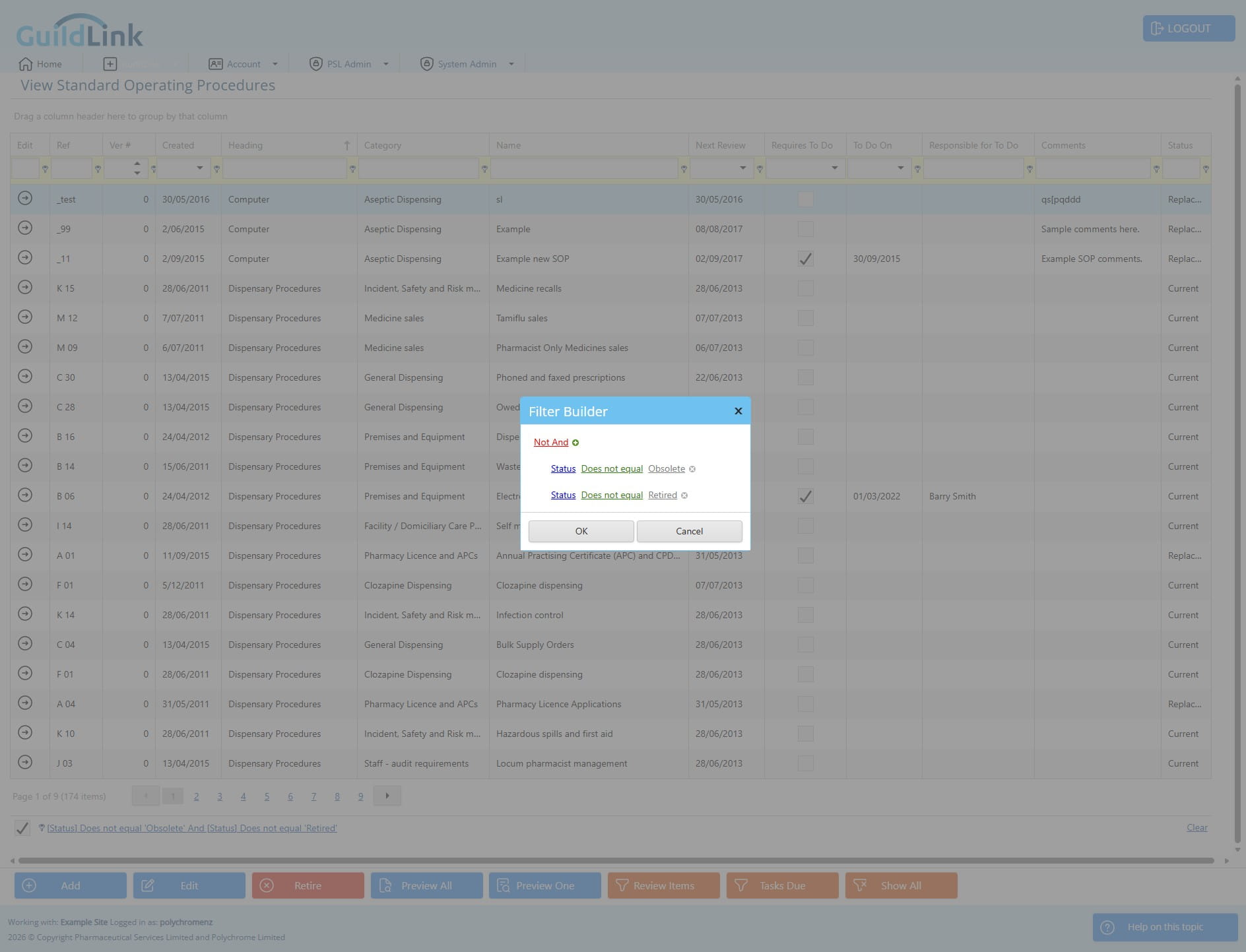
Click on "Category"
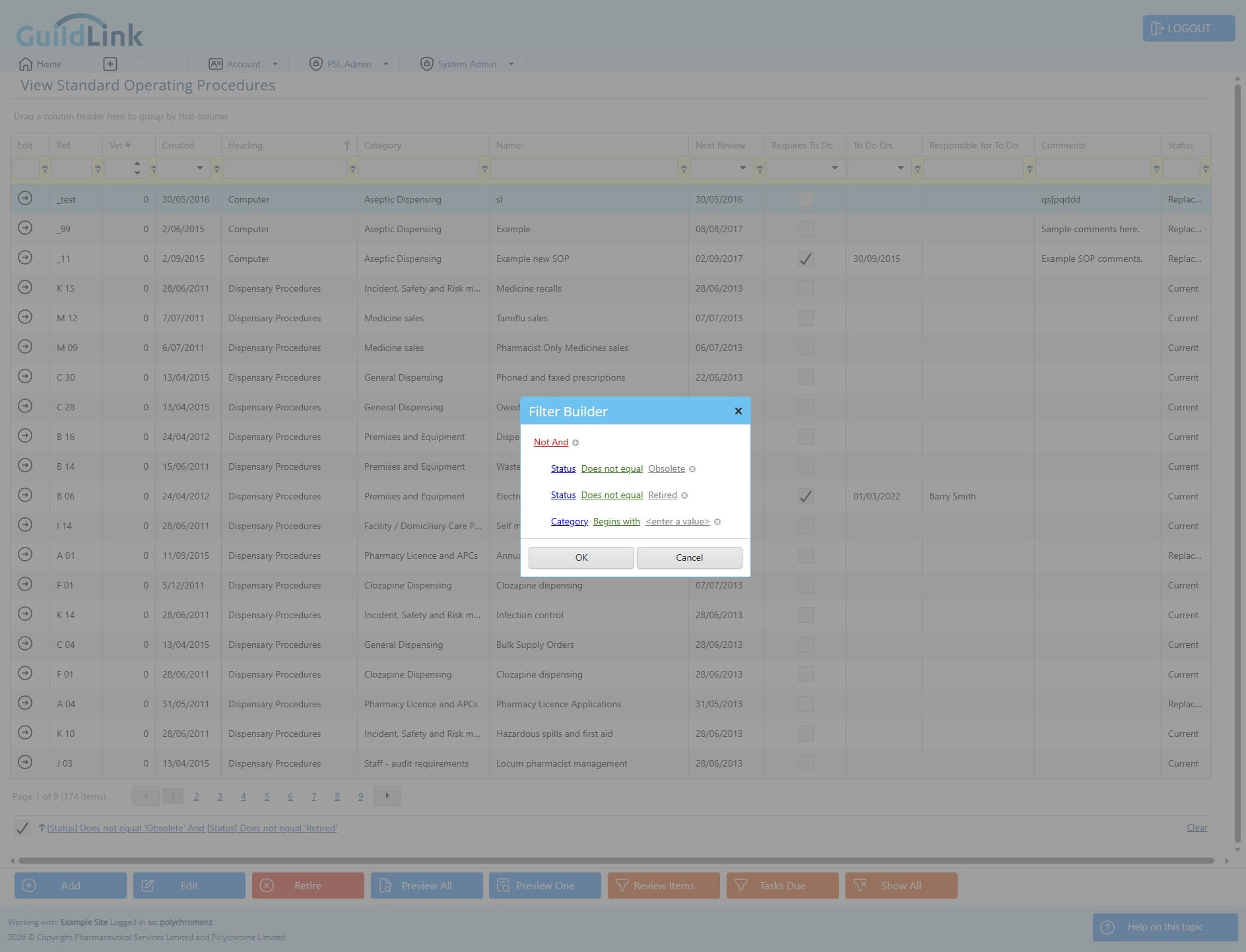
Click on "Status"
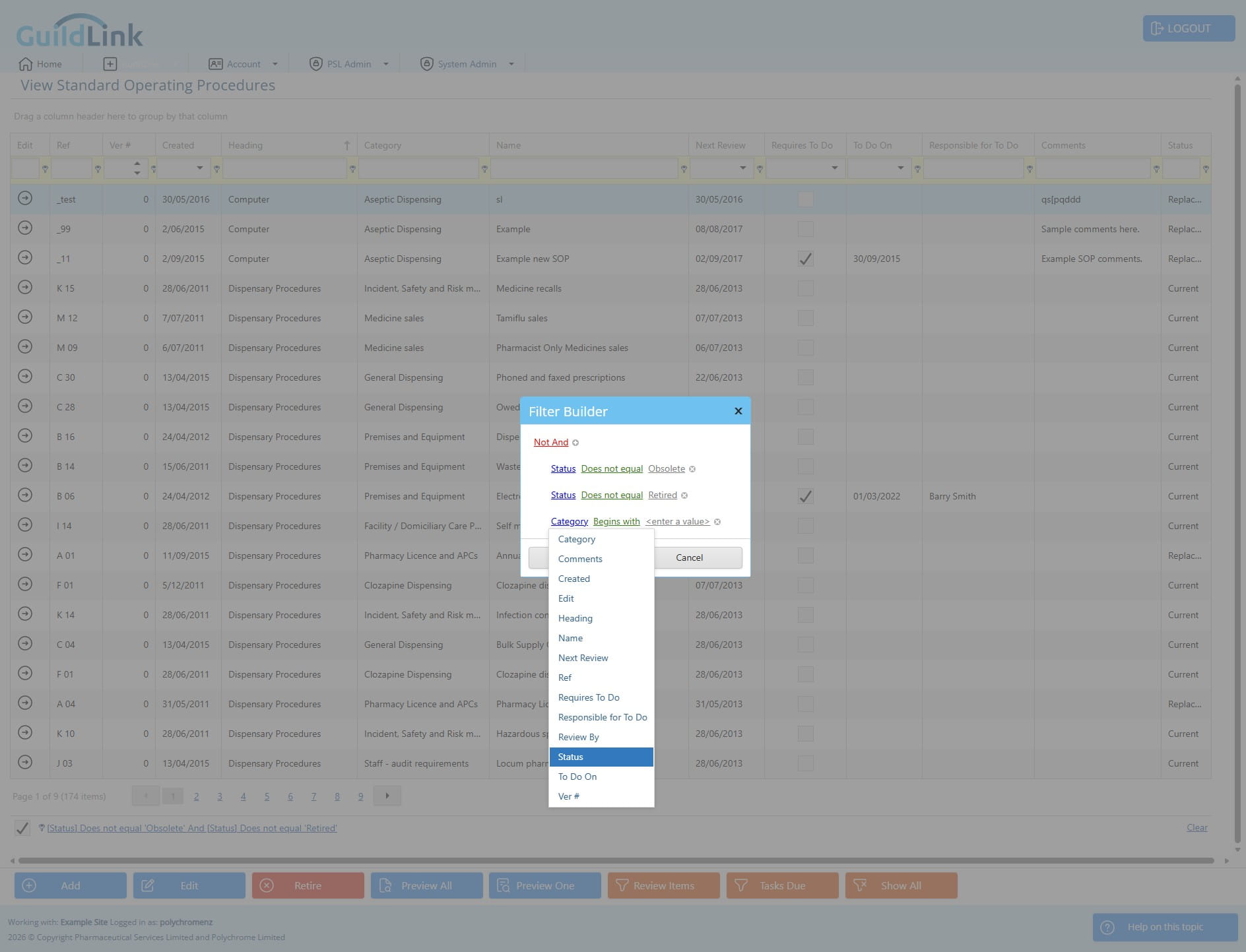
Click on "Begins with"
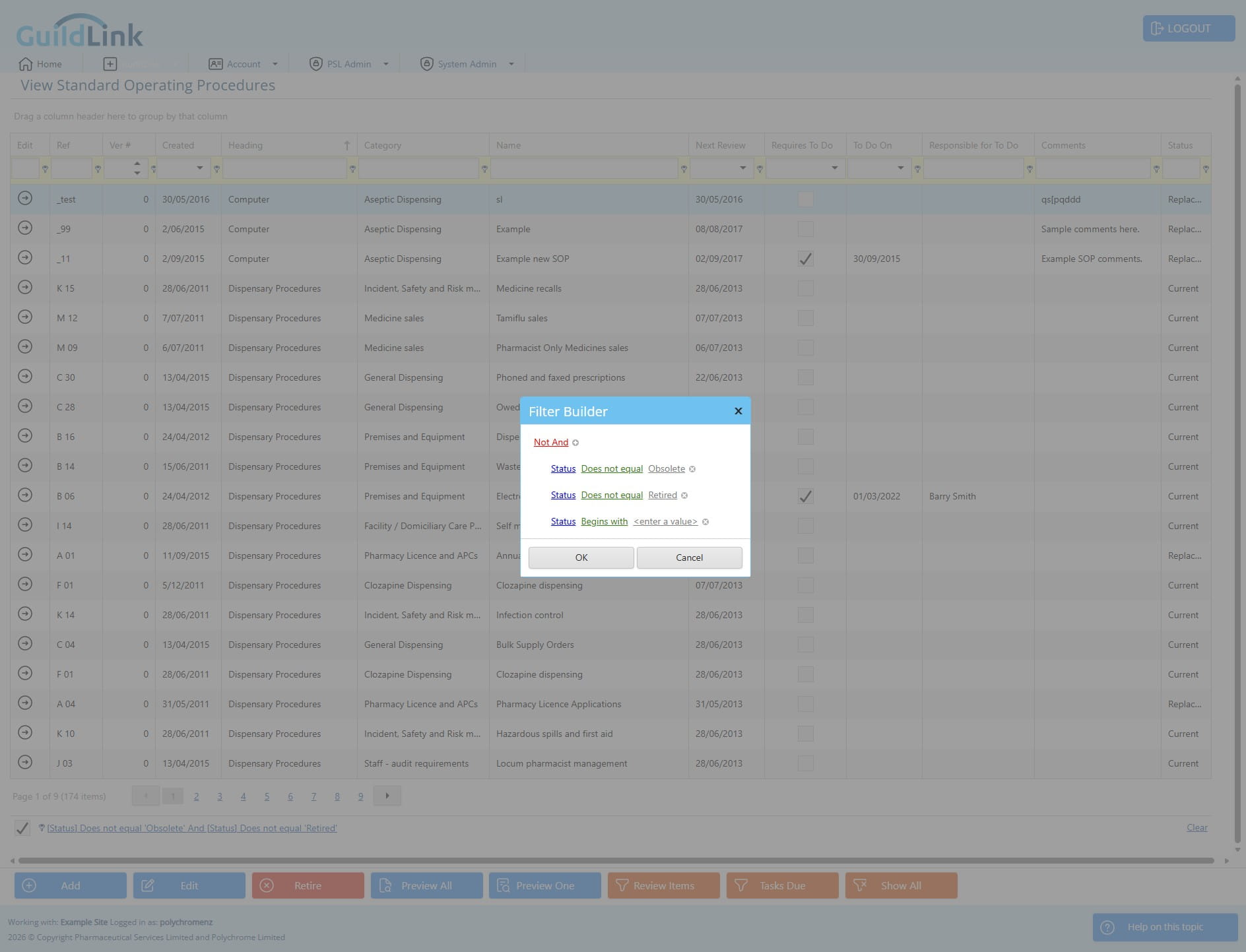
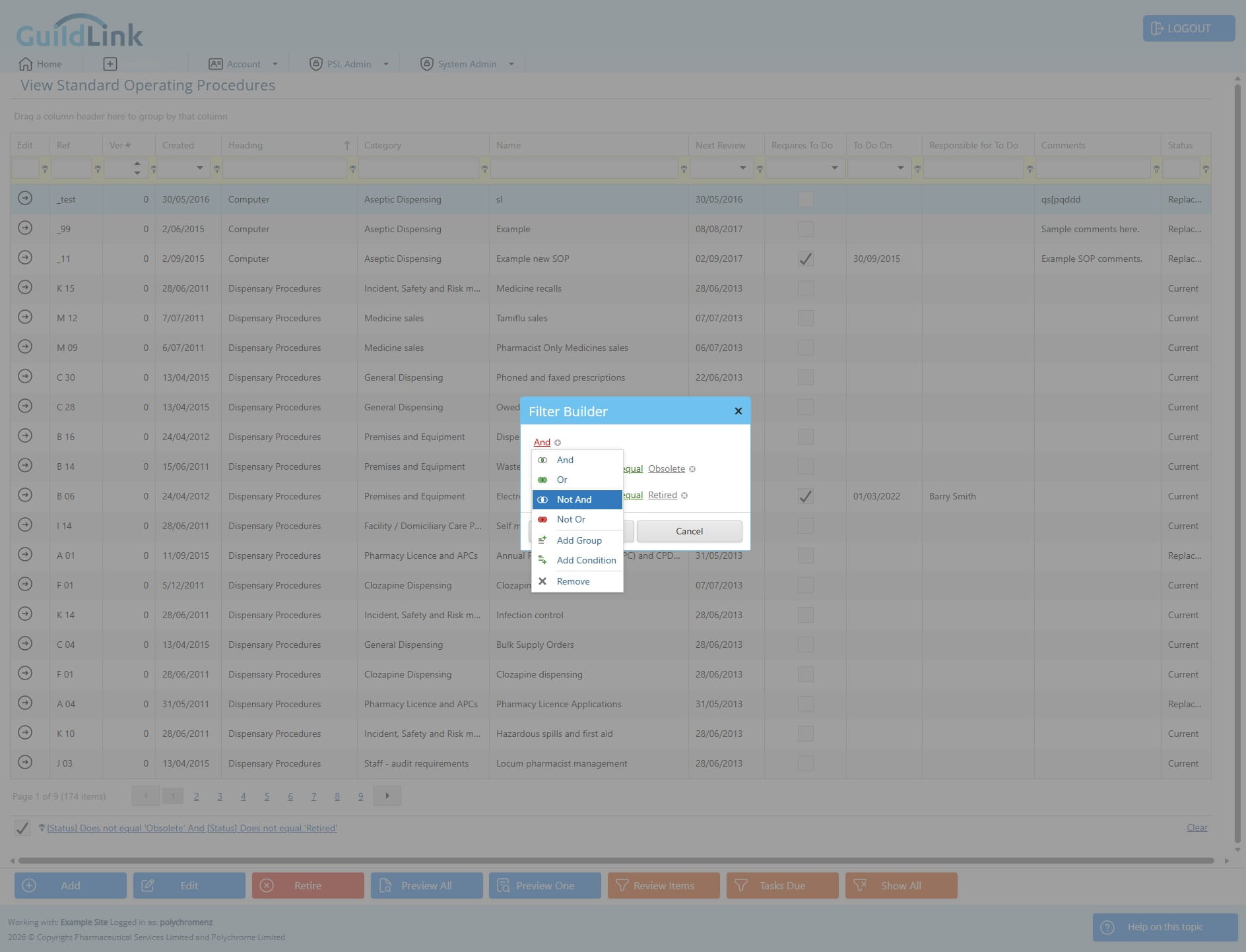
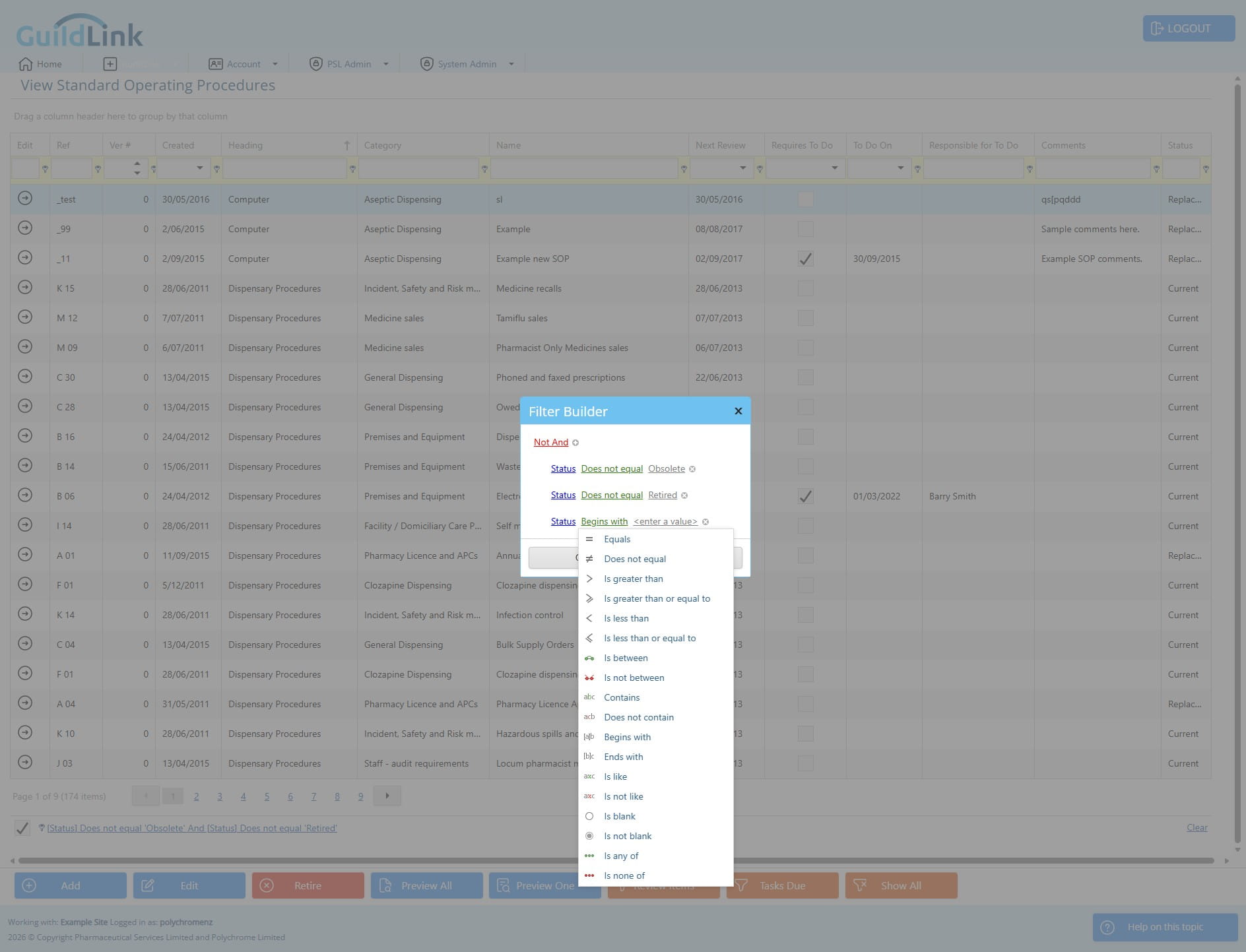
Click on "Not And"
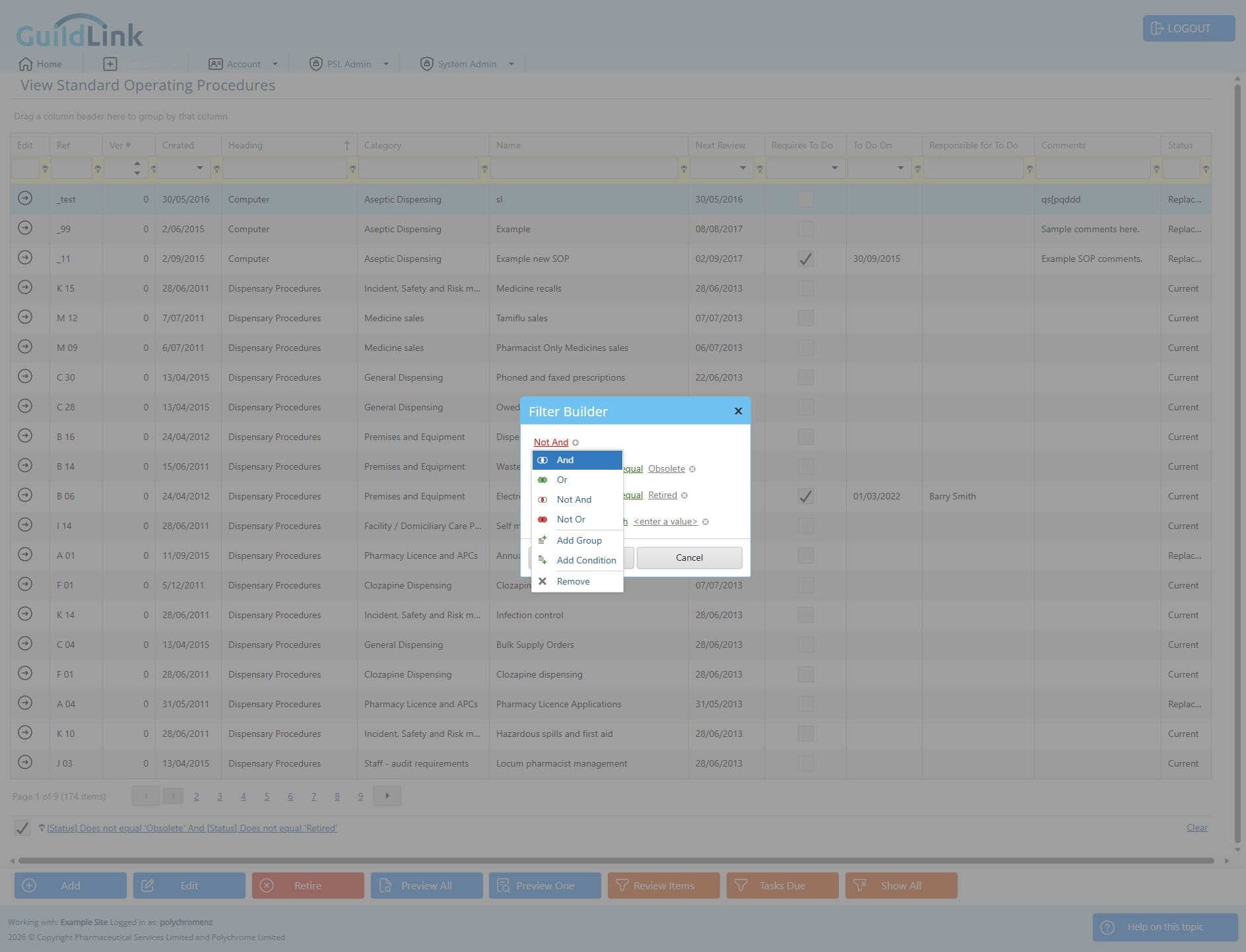
Click on "And"
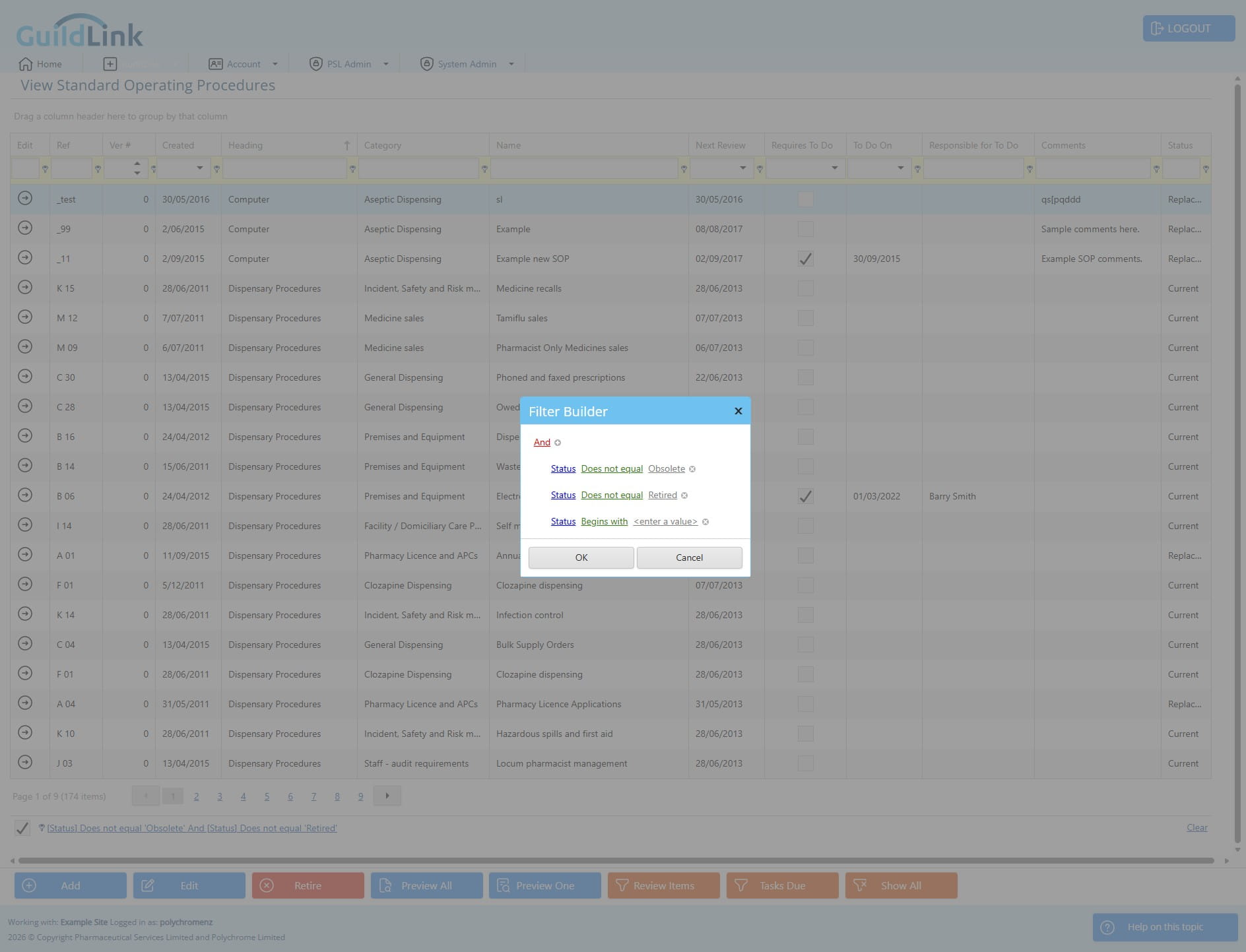
Click on "Begins with"
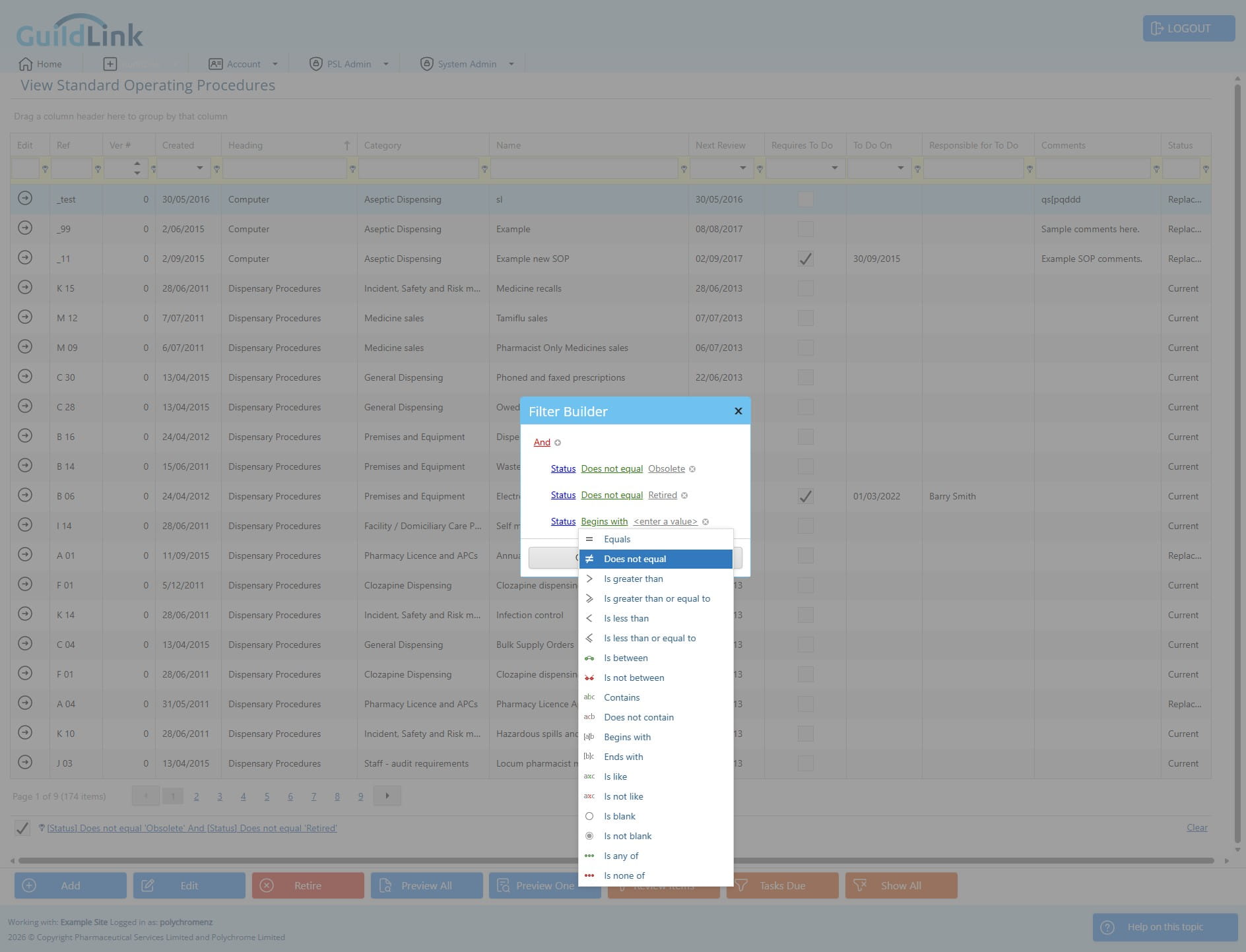
Click on "Does not equal"
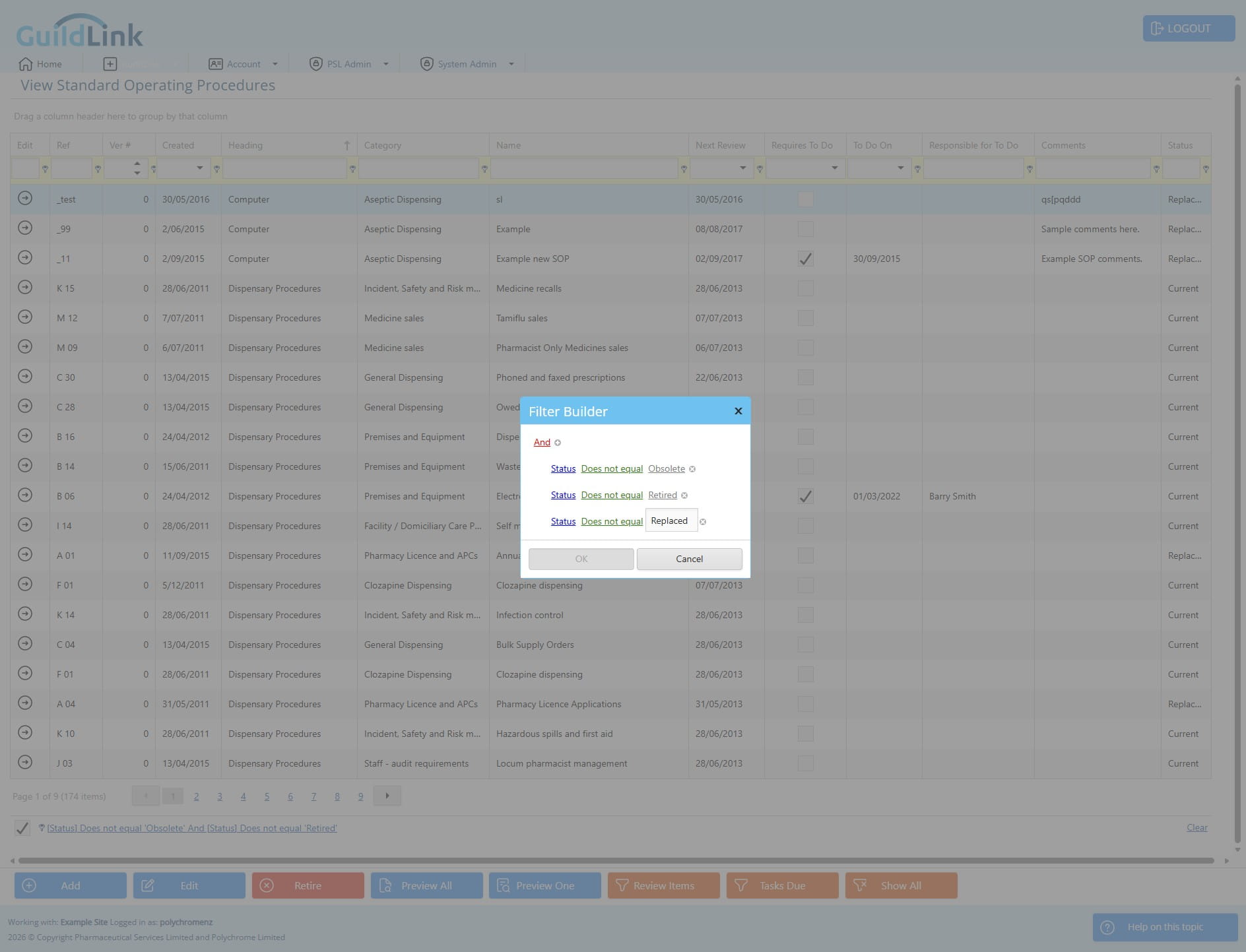
Click on "<enter a value>"
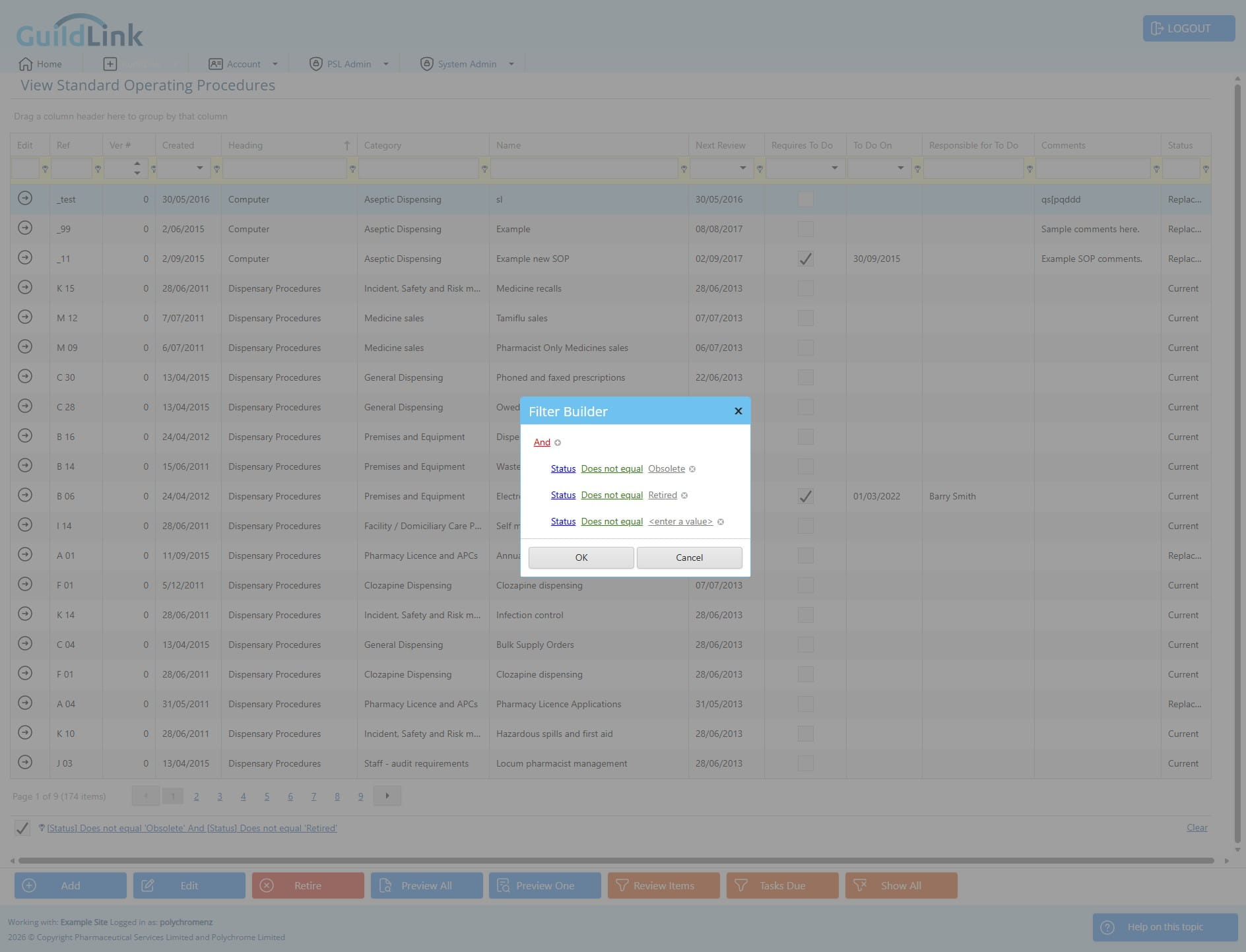
Click here
Click the right arrow to goto the next page of data
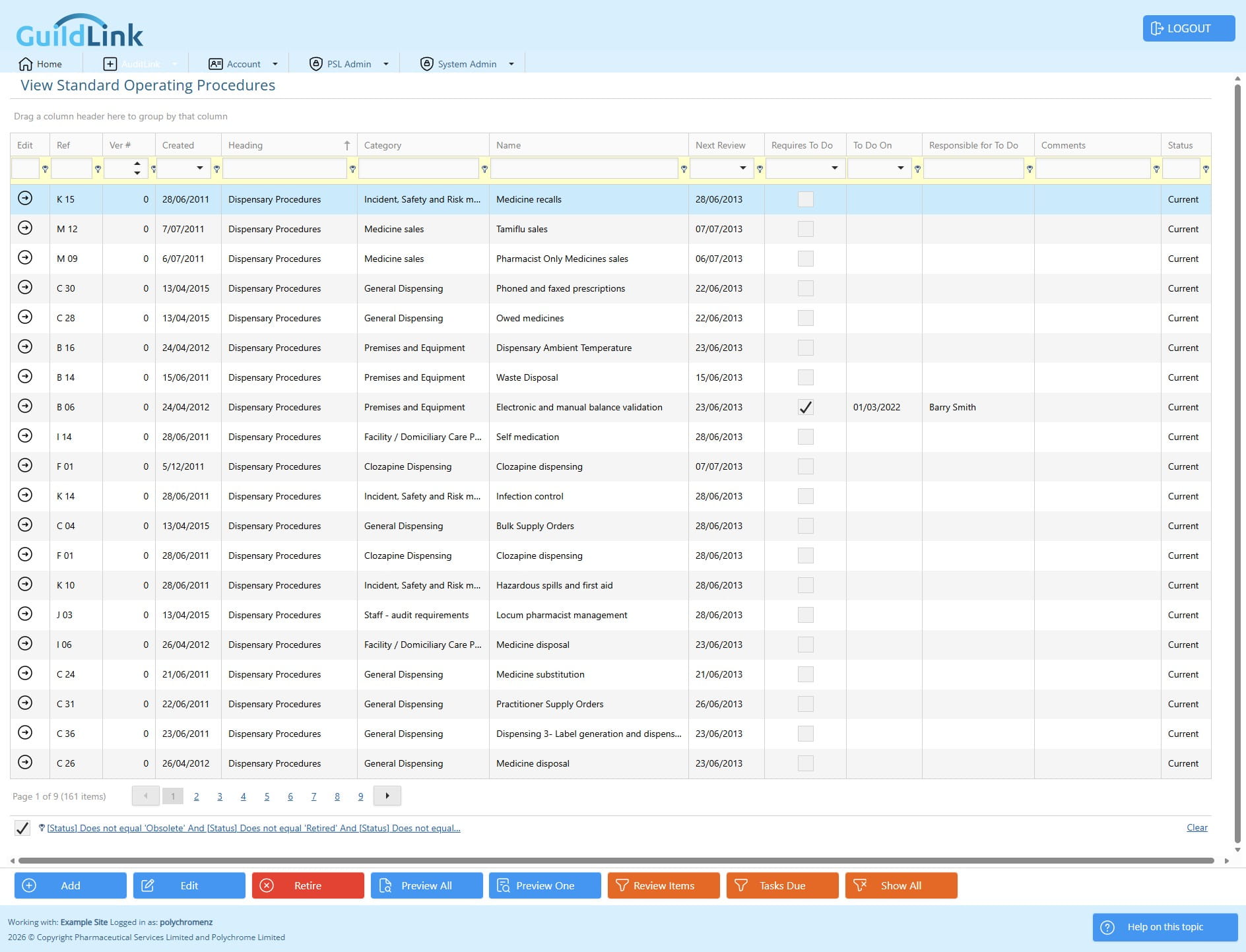
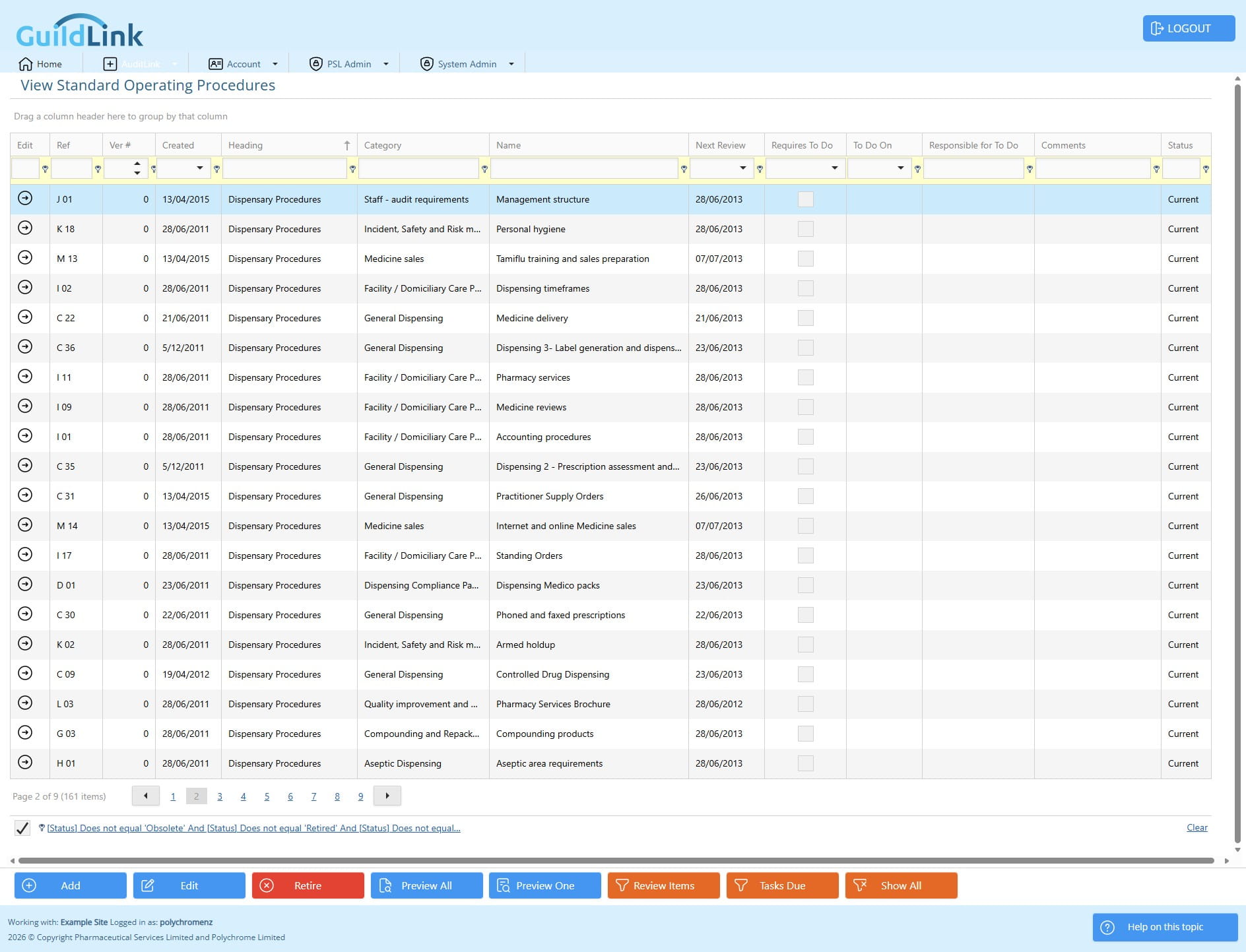
Done 🚀
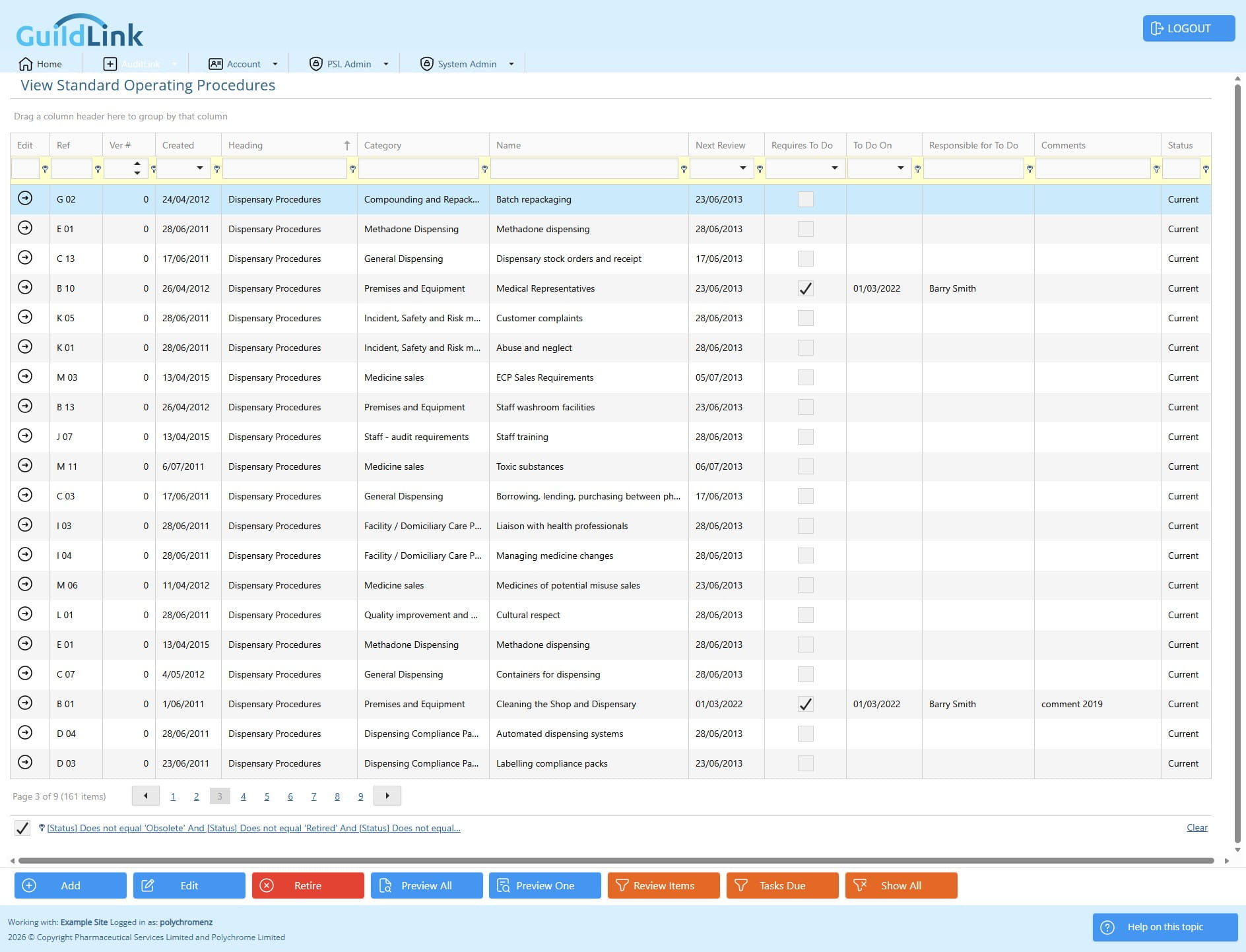
As previously mentioned, the filtering is common to all grids in GuildLink and allows for very powerful ways to search, filter and find data rather than manually clicking through every page of data. You can use as many of the options as you feel comfortable with. Often grouping and then drilling down into data for example grouping by Heading makes for really fast way to navigate data. Some screens like View SOPs have orange quick filter buttons that apply a filter that show commonly searched data.